What Contals does today.
Boards like Trello, one overview of every project, and helpers who join for free.
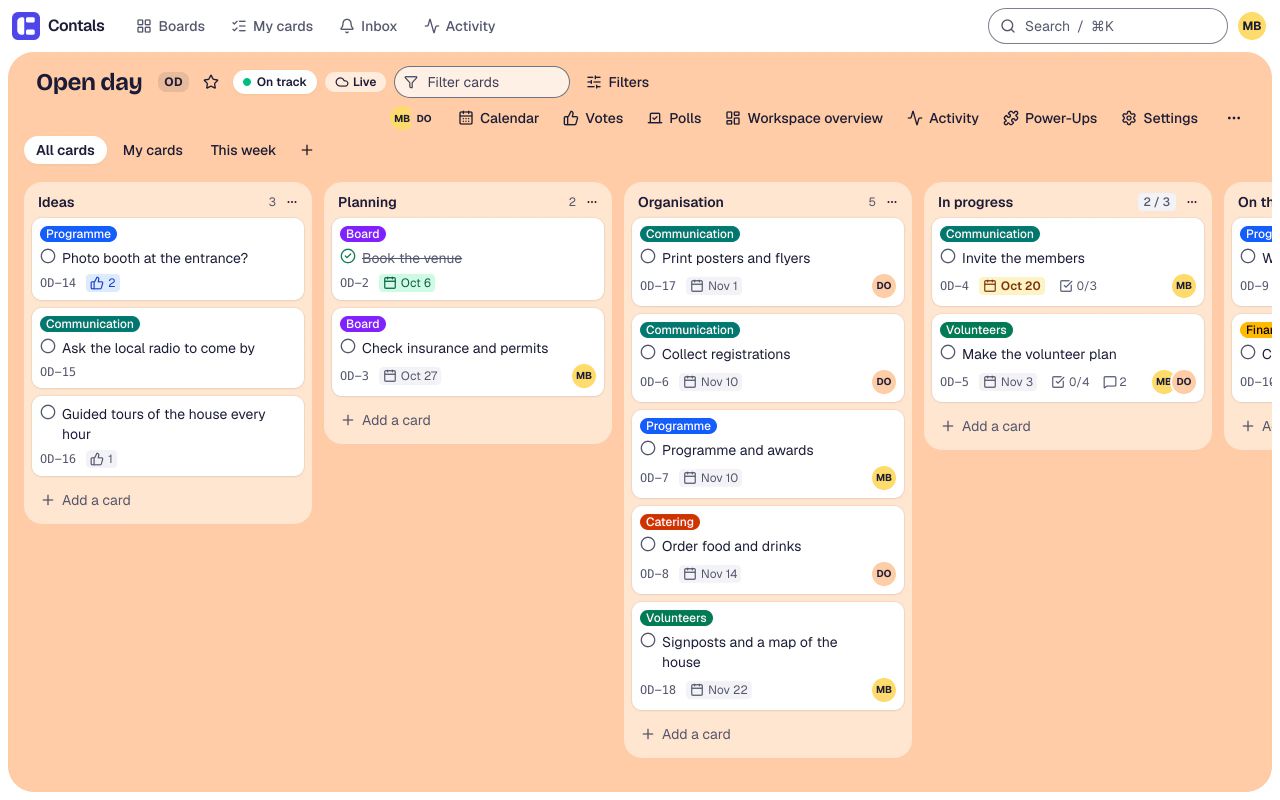
Boards, lists and cards
- Video: on a phone, from the start page into the volunteer day and the website relaunch and back – every project on its own board, in its own colour.
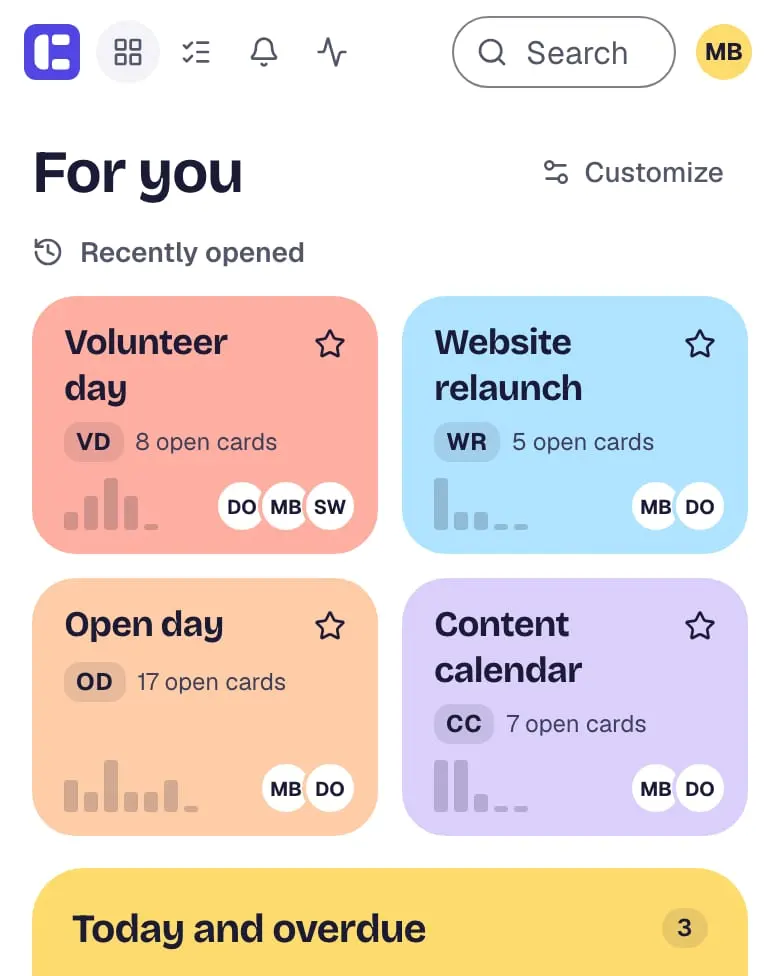
A board per project
Every project, event or team gets its own board in its own colour, and the home page keeps starred and recently opened boards at the top.
- Video: a list is dragged by its header to a new place on the board.
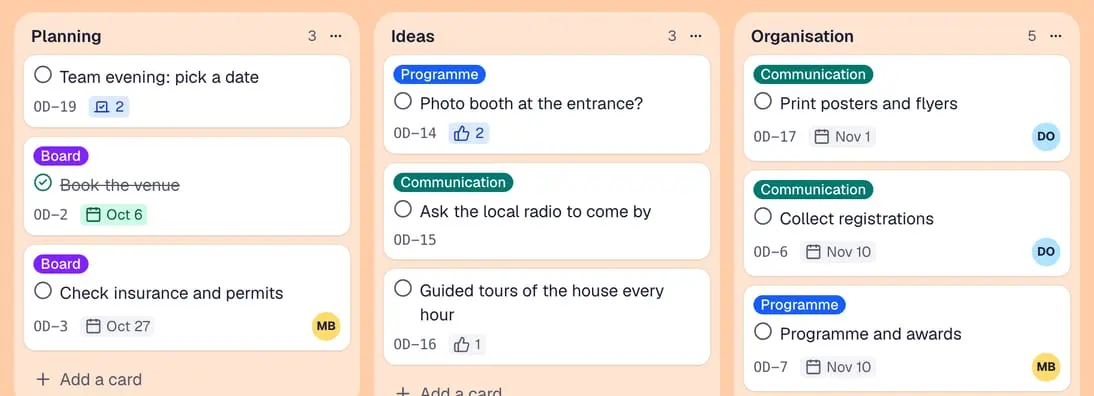
Lists
Add, rename, reorder and archive lists – drag a list by its header or move it from the list menu.
- Video: a new idea goes onto the content calendar in a few keystrokes.
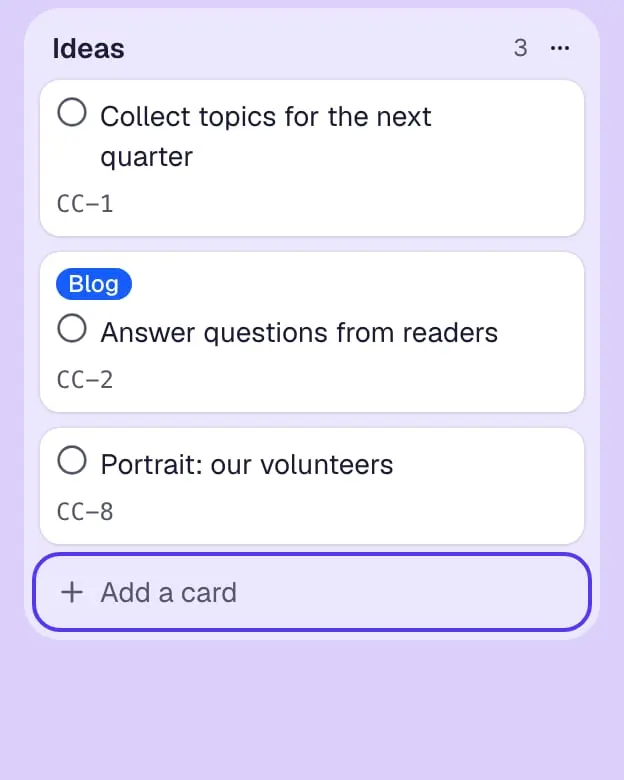
Cards in seconds
Type a title at the bottom of a list and press Enter – the card is there and the field is ready for the next one.
- Video: a card moves to the next list of a project board with drag and drop.
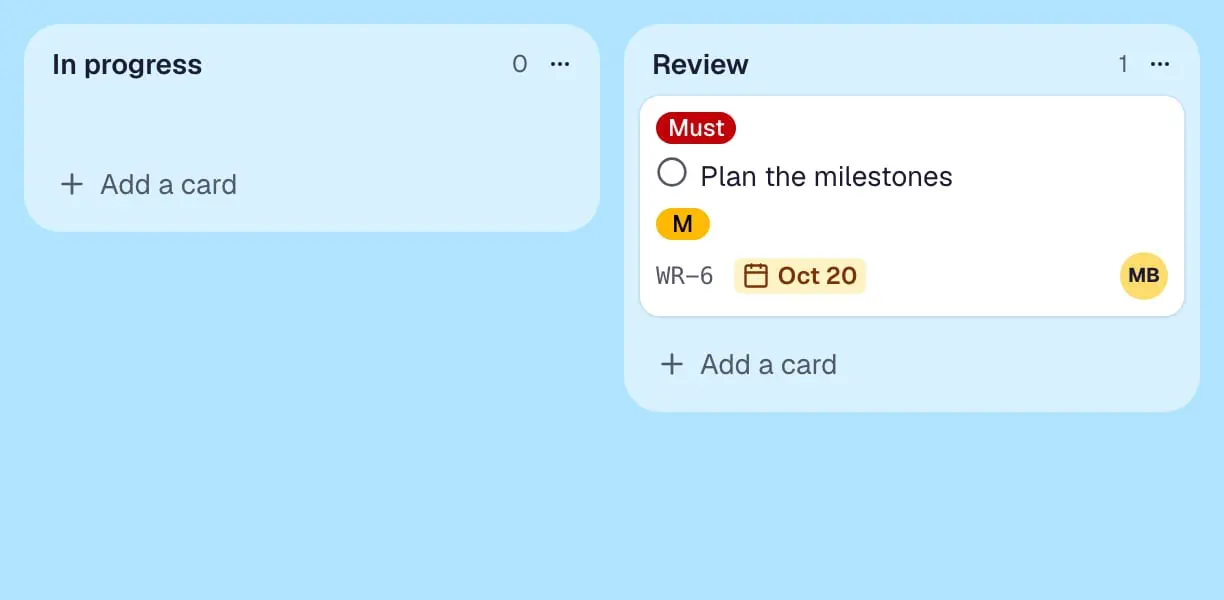
Drag and drop
Drag a card to another list or place, and everyone on the board sees the move at once.
- Video: on a phone, a card goes to the list “Done” with “Move to list” – no dragging needed.
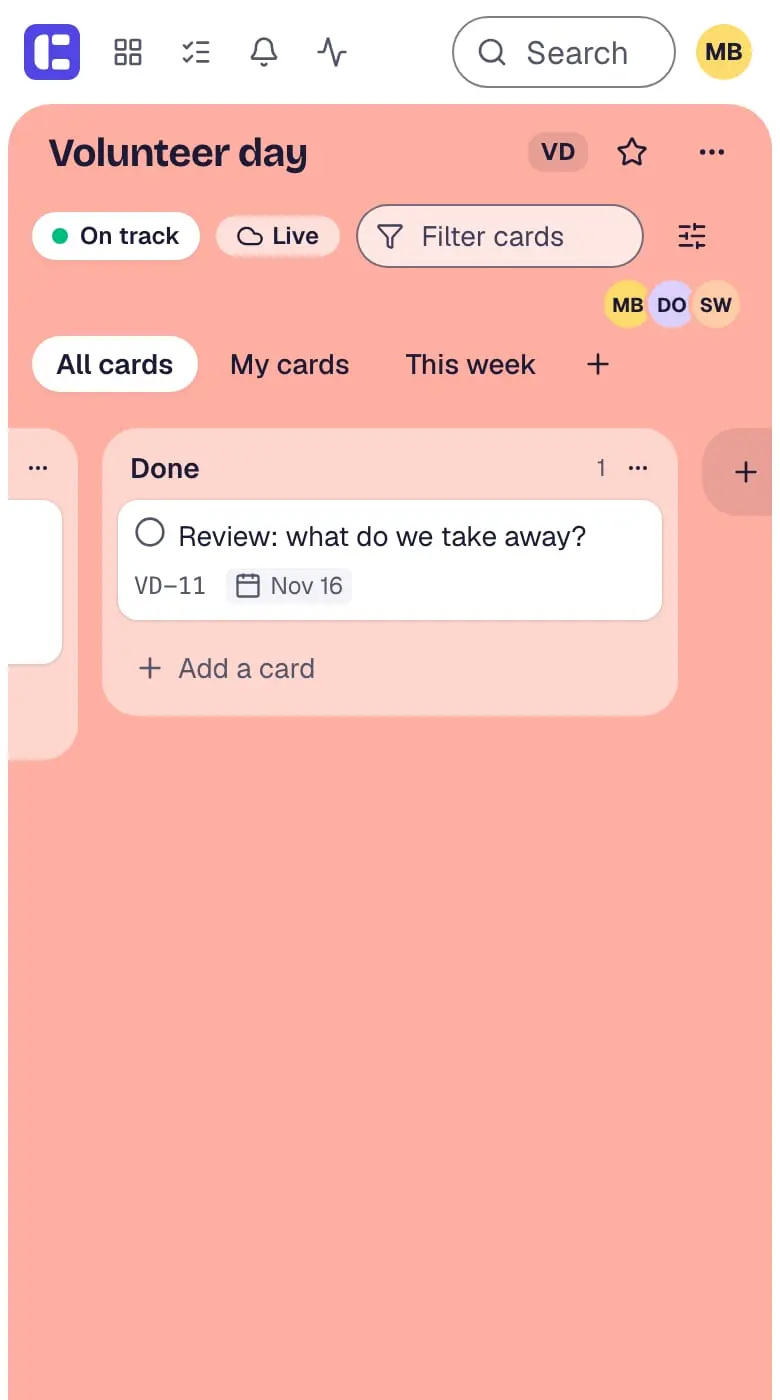
Move without dragging
“Move to list” and “Position” in the card details, and the list menu, move cards and lists on phones and with the keyboard.
- Video: a card title is clicked and renamed right on the card, then Enter.
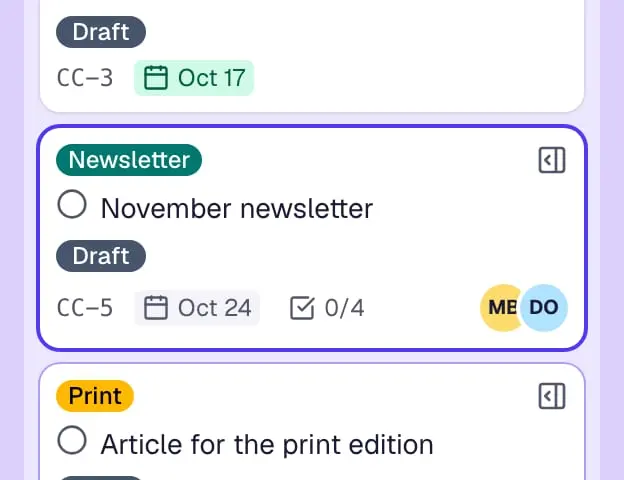
Titles edited on the card
Click a card title and rename it right on the card – Enter saves, Escape cancels.
2 more features
- Video: a card’s details open beside the board while the lists stay in view; a click on the next card swaps them.
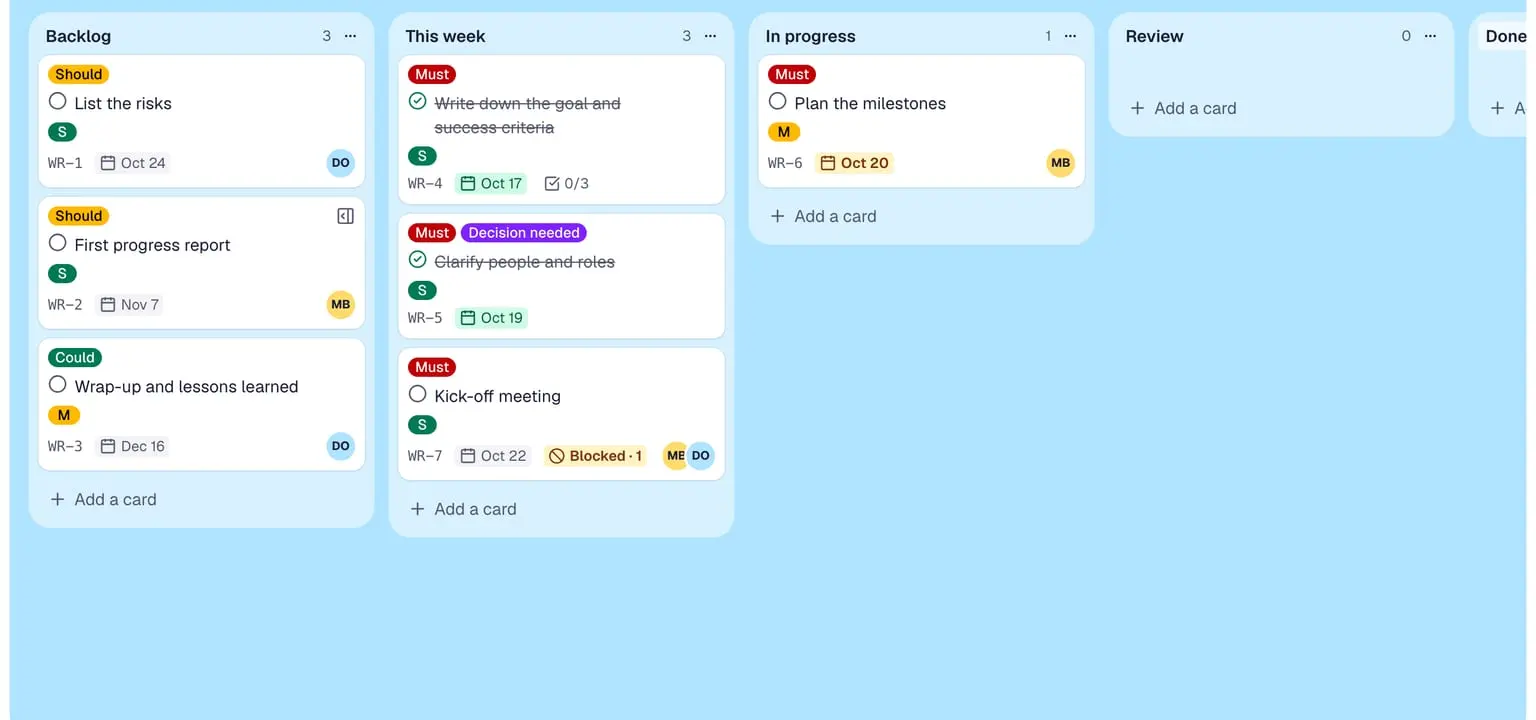
Card details in a sidebar
Description, labels, people, due date, checklists, fields, files, comments and activity open beside the board – the lists stay in view.
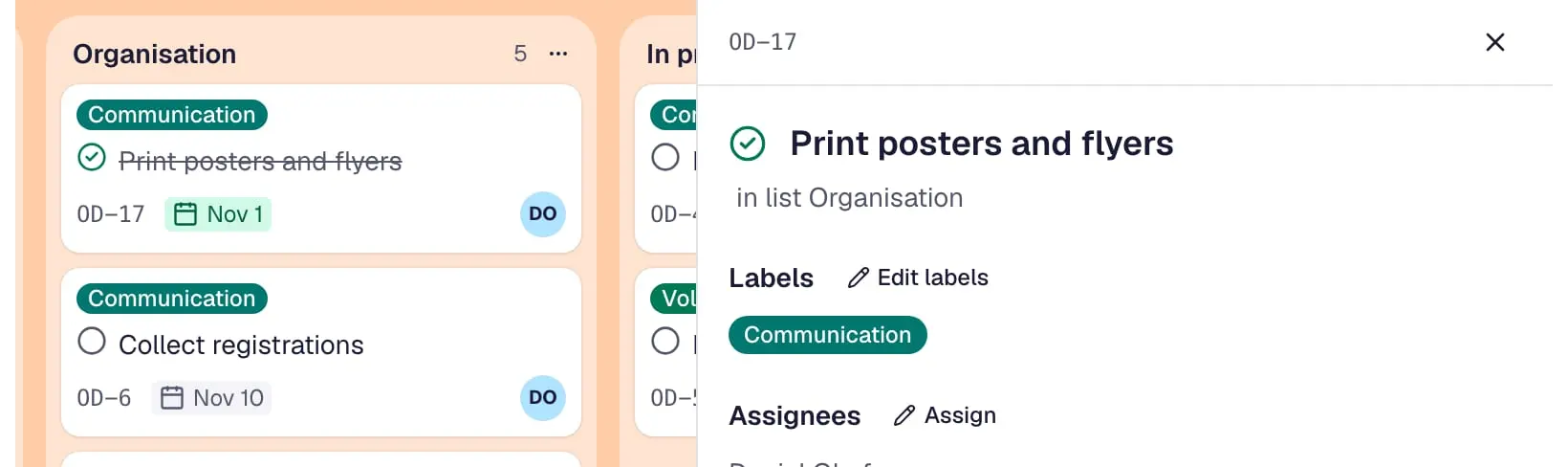
- Video: “Mark as done” in a card’s details – the card on the board shows at once that it is done.
Mark as done
A finished card is marked done – volunteers and guests can do it for the cards assigned to them.
On the card
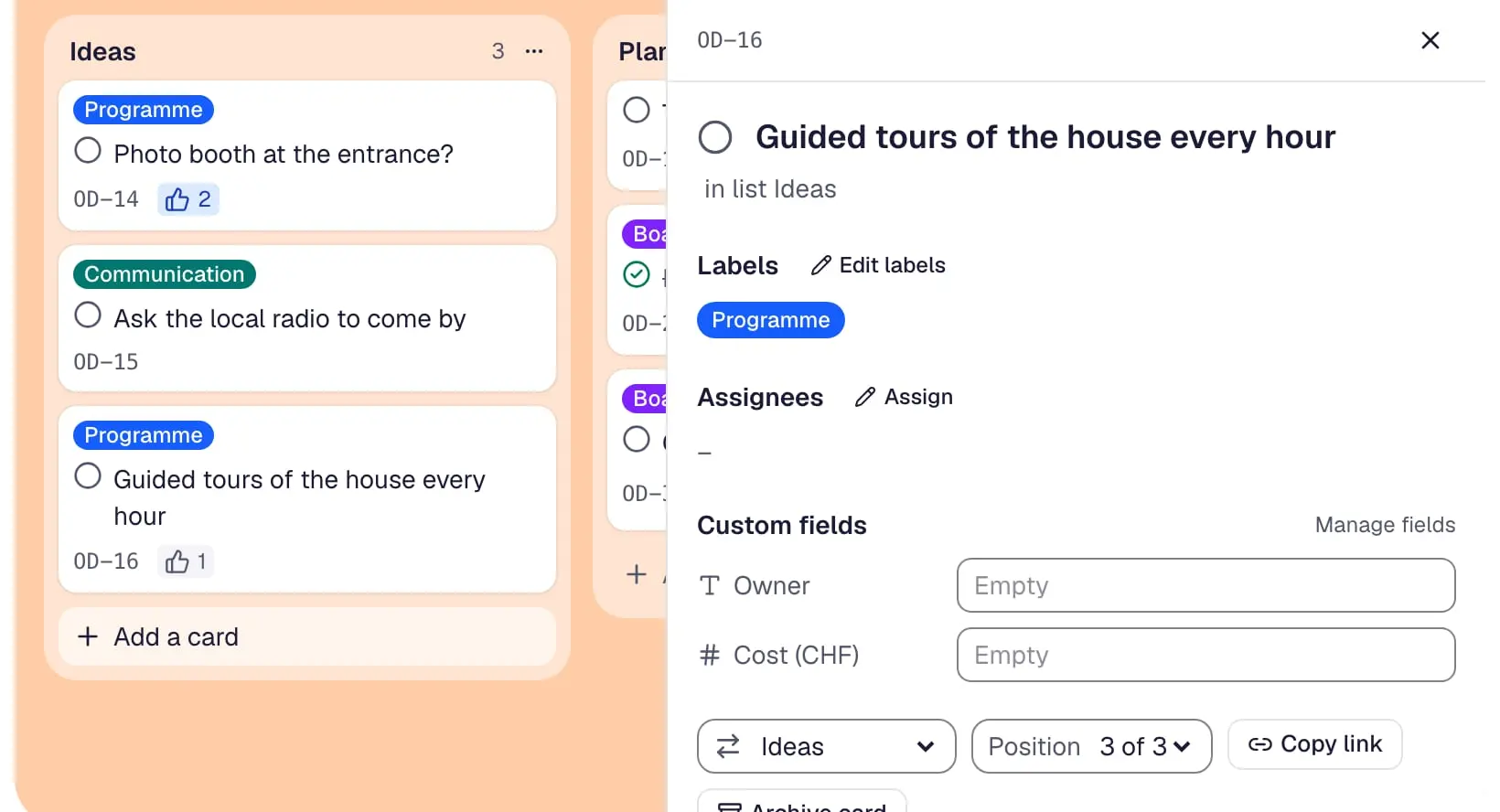
- Video: a card gets a label in its details, and the coloured label appears on the card at once.
Labels
Coloured labels, with or without a name, mark cards so that a glance – or a filter – shows what belongs together.
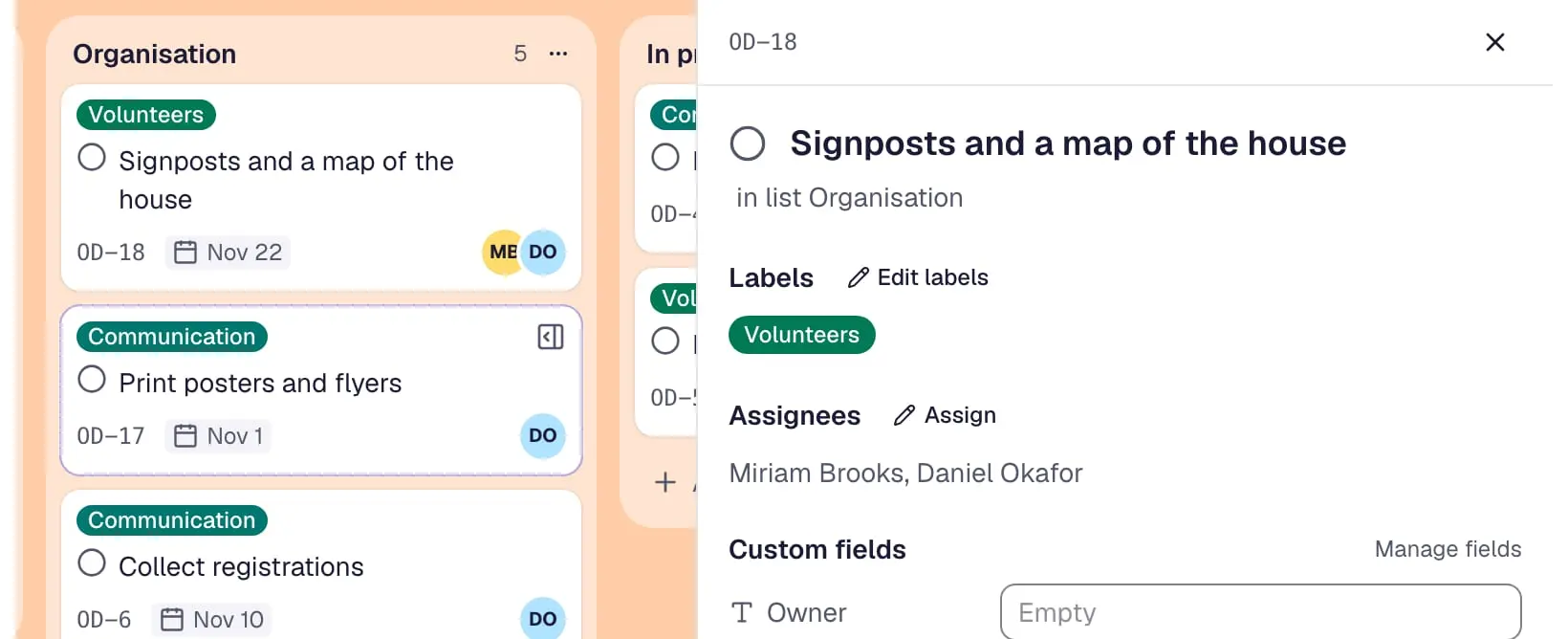
- Video: a colleague is assigned to a card, and his avatar appears on the card.
Assignees
Put people on a card – they find it under My cards and get a line in their inbox.
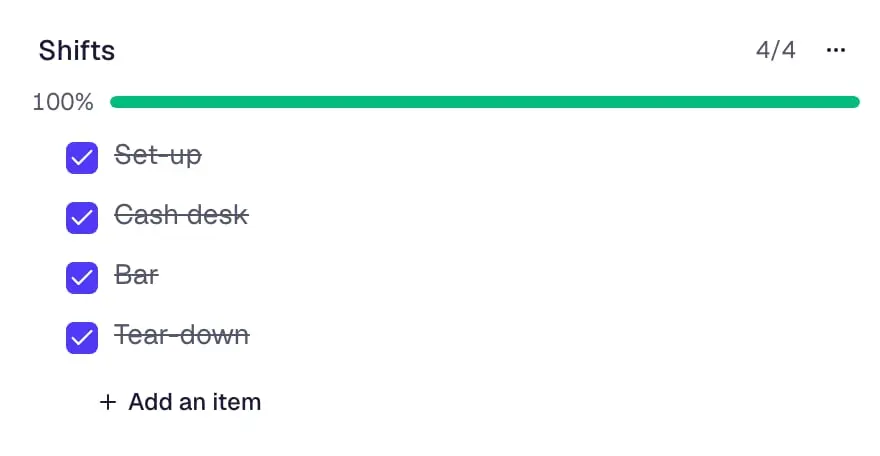
- Video: the last two shifts of a checklist are ticked and its progress bar fills to 100 percent.
Checklists
Checklists on a card with a progress bar – paste several lines to add several items, and hide the ticked ones.
- Video: a checklist item gets a person and a due date of its own; the avatar and the date appear beside it.
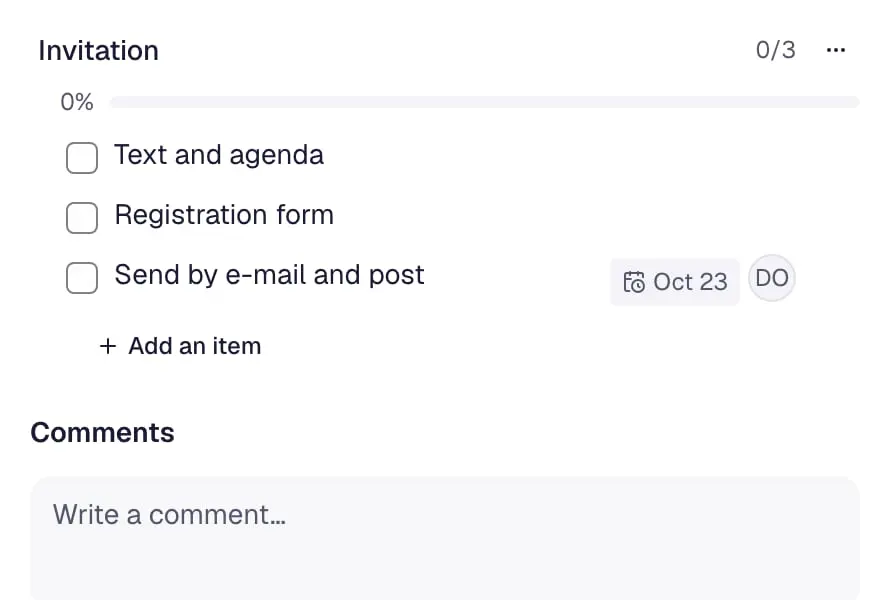
A person and a date per item
Each checklist item can have its own person and due date – it then shows up under My cards and in the calendar.
- Video: a checklist item becomes a card of its own below its parent card, and the item links to it.
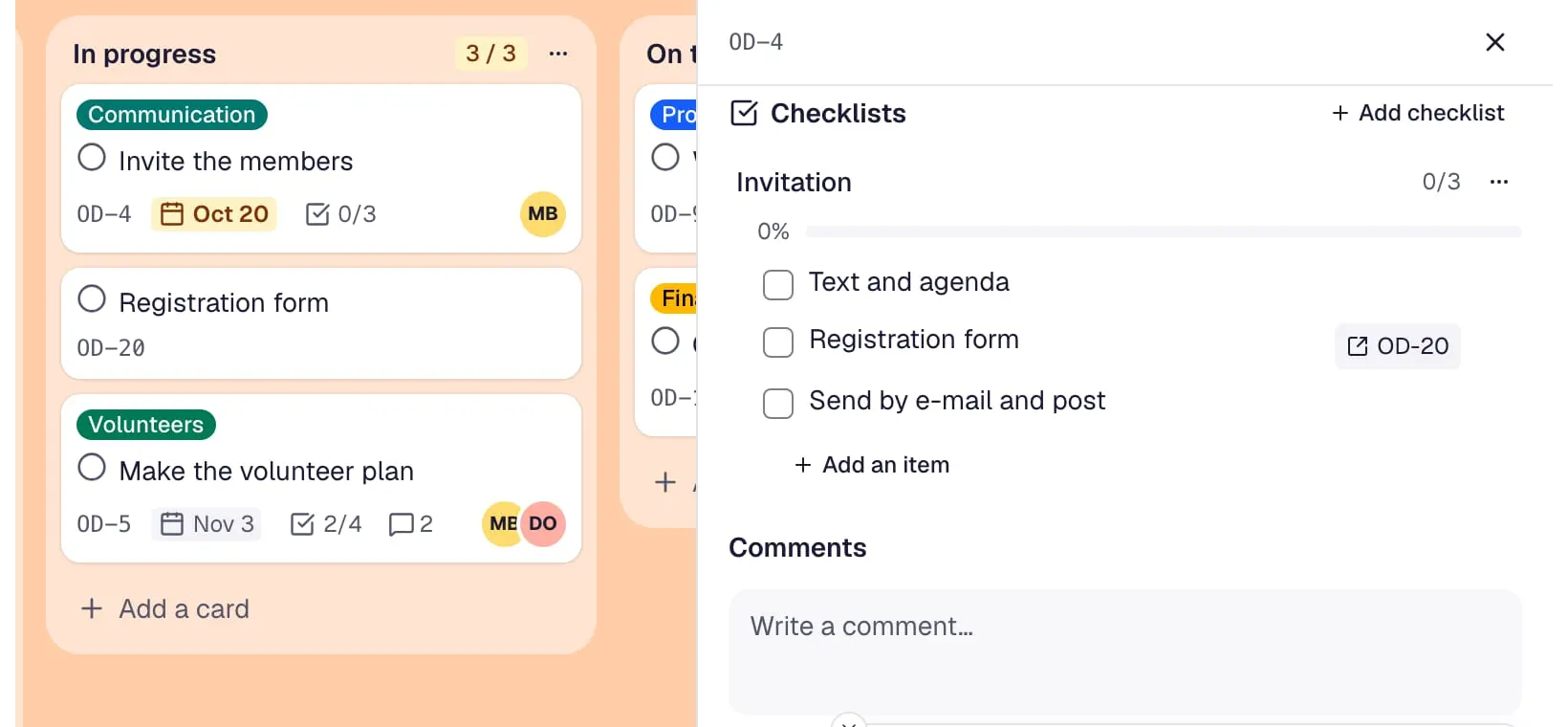
Checklist items become cards
An item that grew into a task becomes a card of its own – the item stays as a link and is ticked when the card is done.
- Video: a custom dropdown field for the priority is set to “High”, and its coloured chip appears on the card.
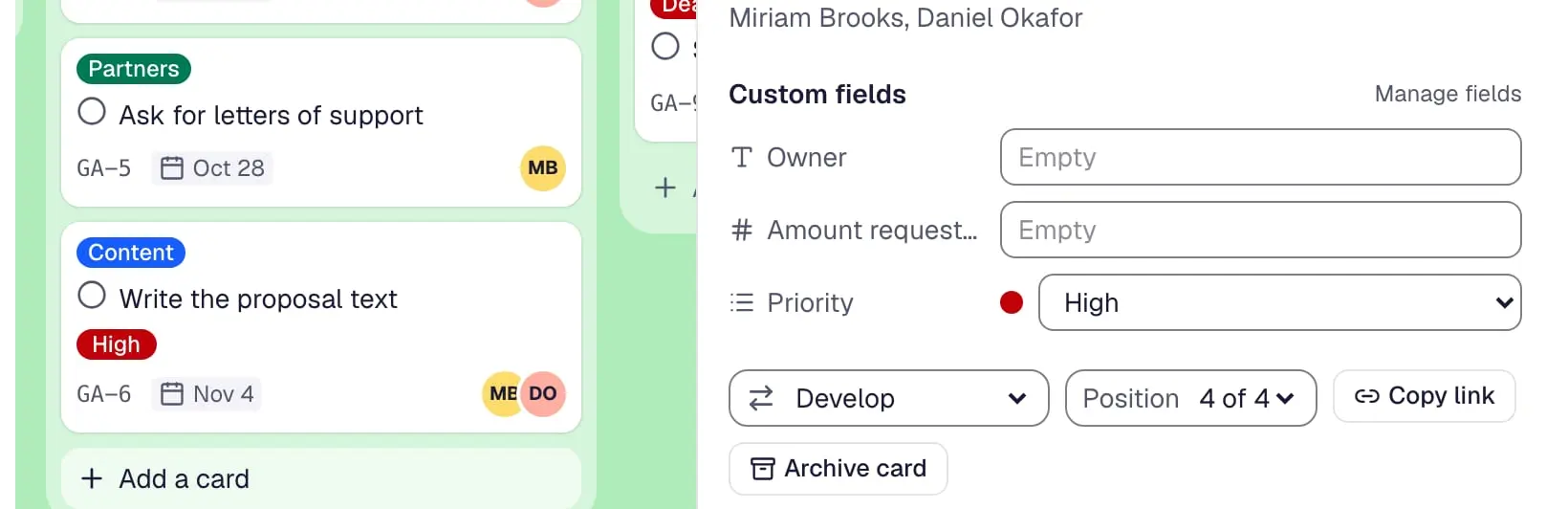
Custom fields
Text, number, date, checkbox and dropdown fields for every card of a board, shown on the card front if you like.
5 more features
- Video: a comment is written on a card, and the comment count on the card goes from 1 to 2.
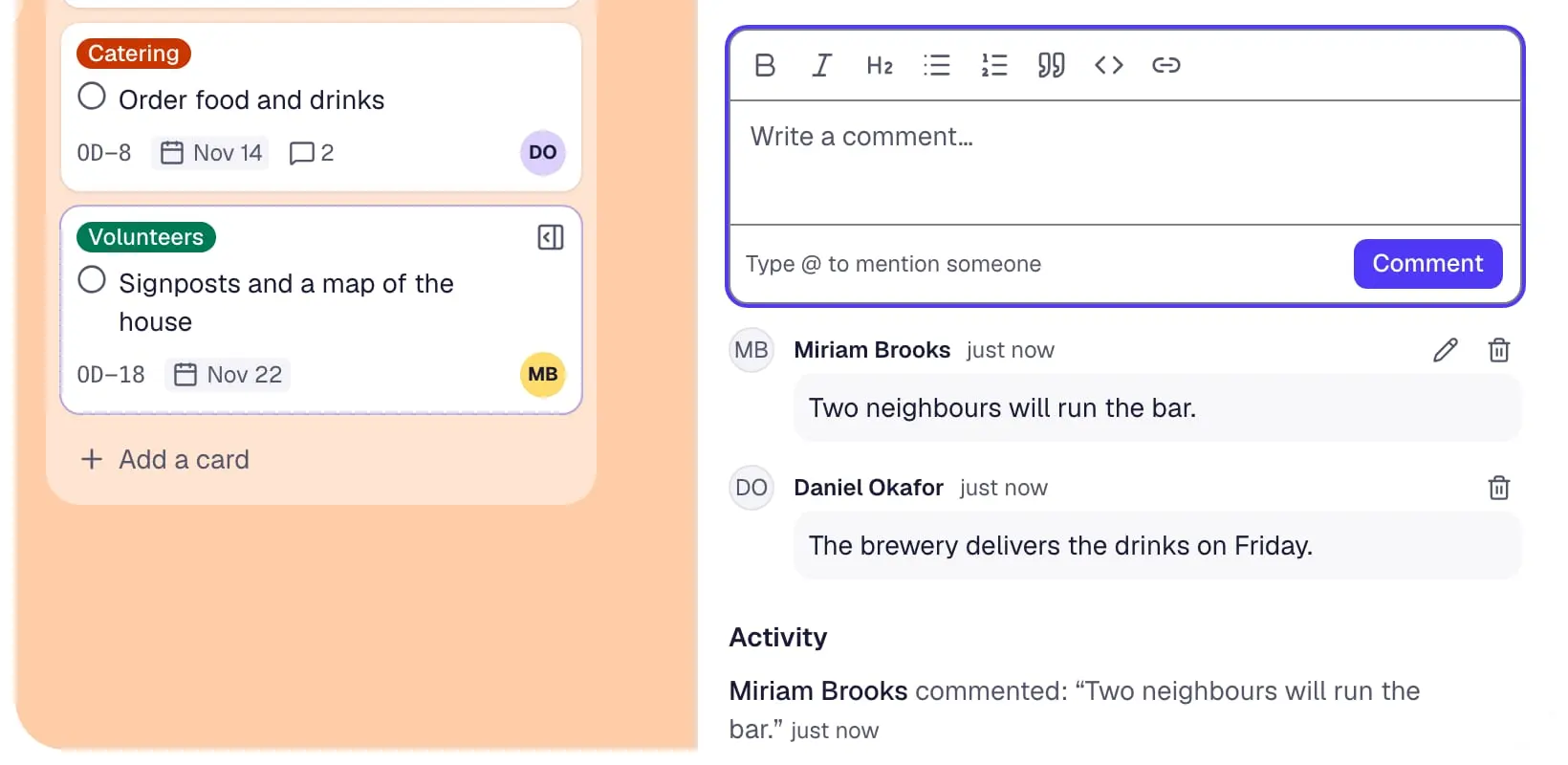
Comments
Questions and decisions stay on the card instead of in chats – edit or delete your comments, and the card shows how many there are.
- Video: a comment on the card asks a colleague with an @mention.
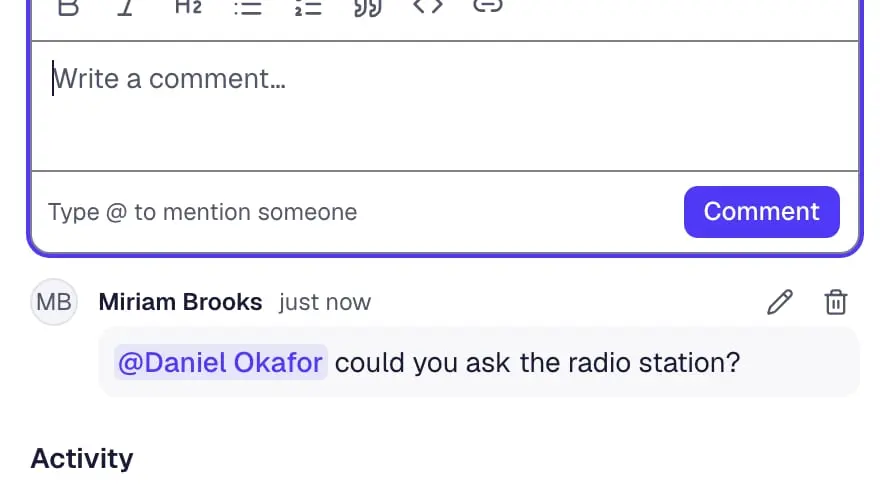
Mentions
Type @ in a comment or description to mention someone on the board – they get a notification.
- Video: in a card’s description, one line becomes a heading and three lines a bulleted list from the toolbar.
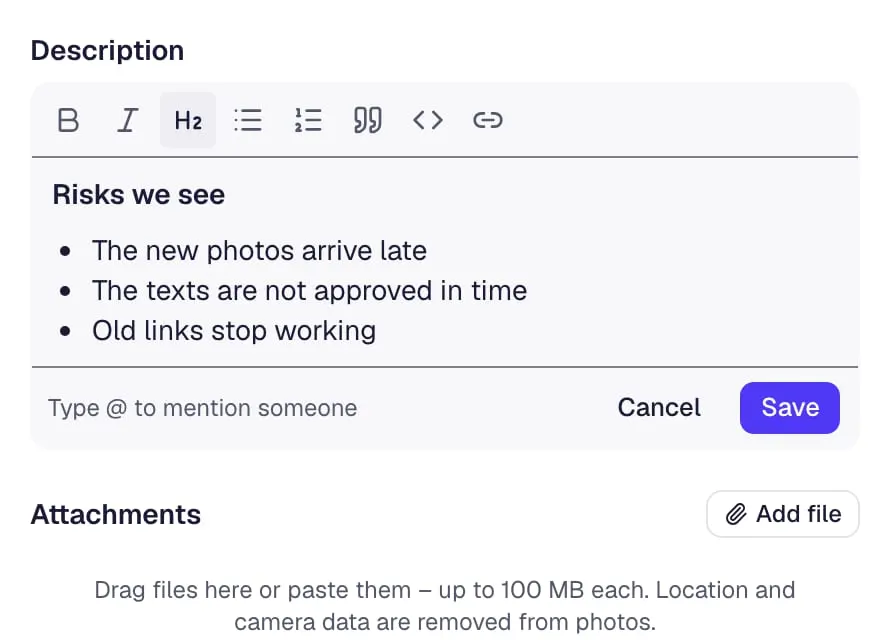
Formatted text
Bold, lists, links, headings, quotes and code in descriptions and comments – and two people editing one description lose nothing.
- Video: a picture is dropped onto a card’s details; its preview appears and the card shows it on the board.
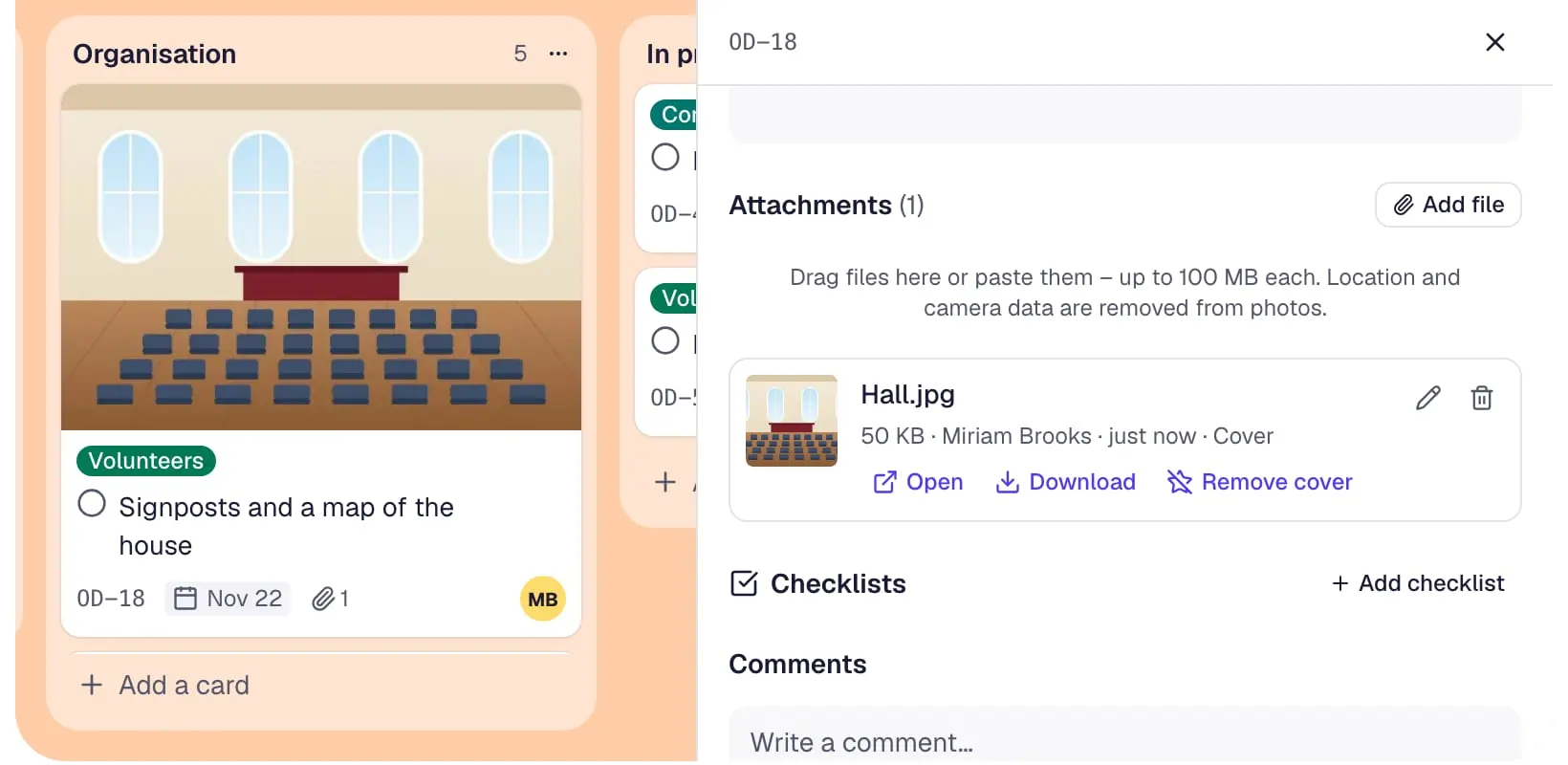
File attachments
Drop, paste or photograph files onto a card, with previews and PDFs in the browser – photos lose their location and camera data on upload.
- Video: on a card with two pictures, “Make cover” on the second – the card on the board shows it on top.
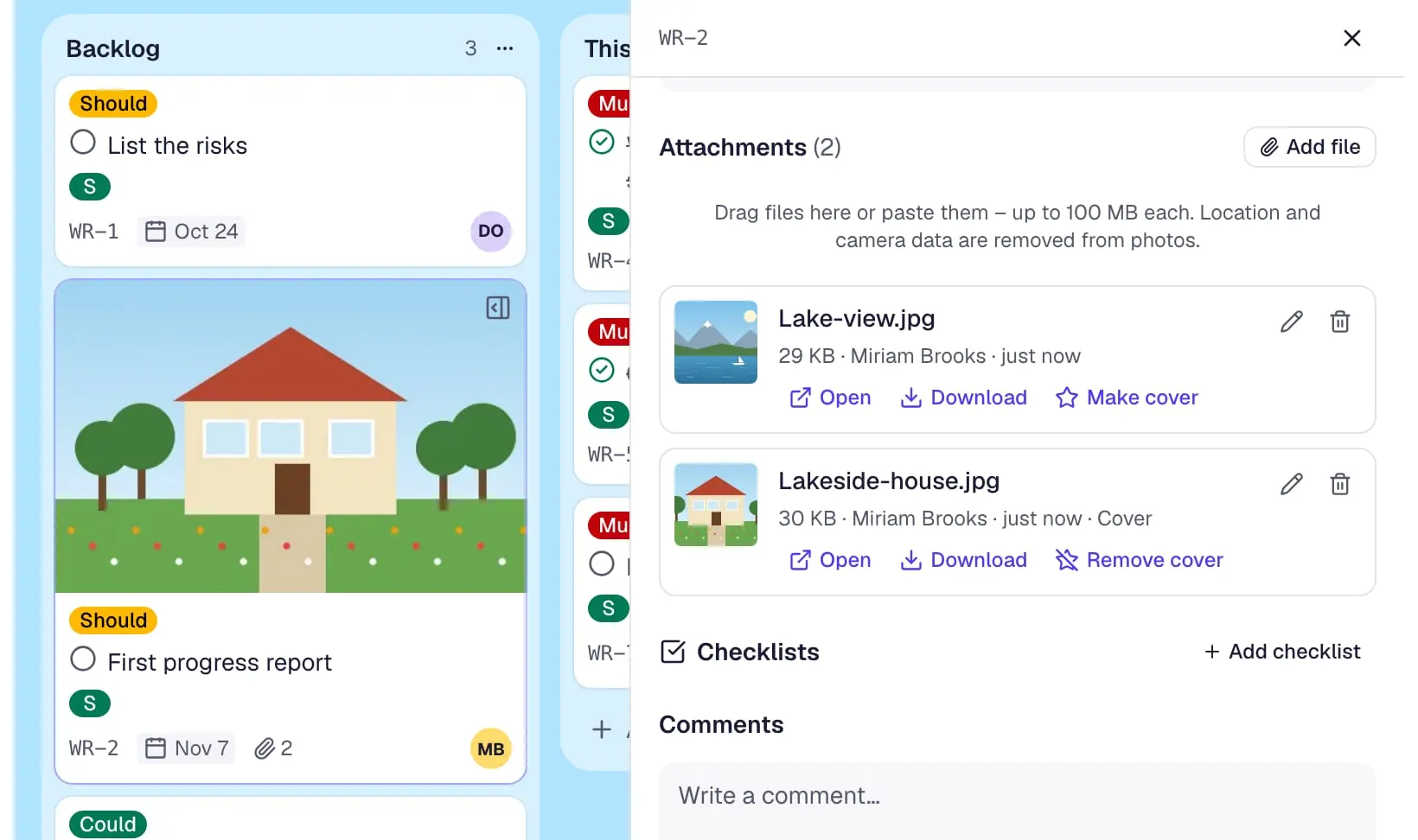
Card covers
The first picture on a card becomes its cover on the board, and “Make cover” picks another one.
Working together
- Video: two windows side by side – one person moves a card, and the other window shows the move a moment later.
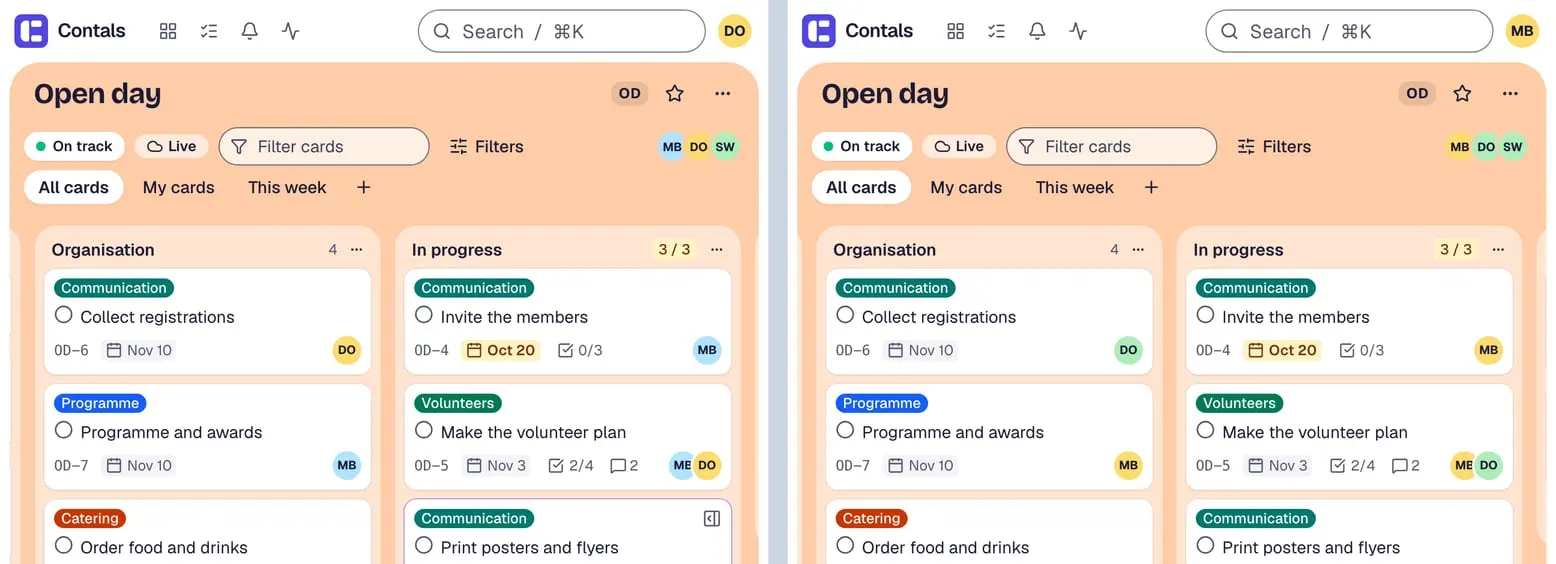
Real time
Changes by others appear on every screen within a moment, without reloading.
- Video: back on a board, a strip sums up what others changed since your last visit, and “Show cards” lists the cards.
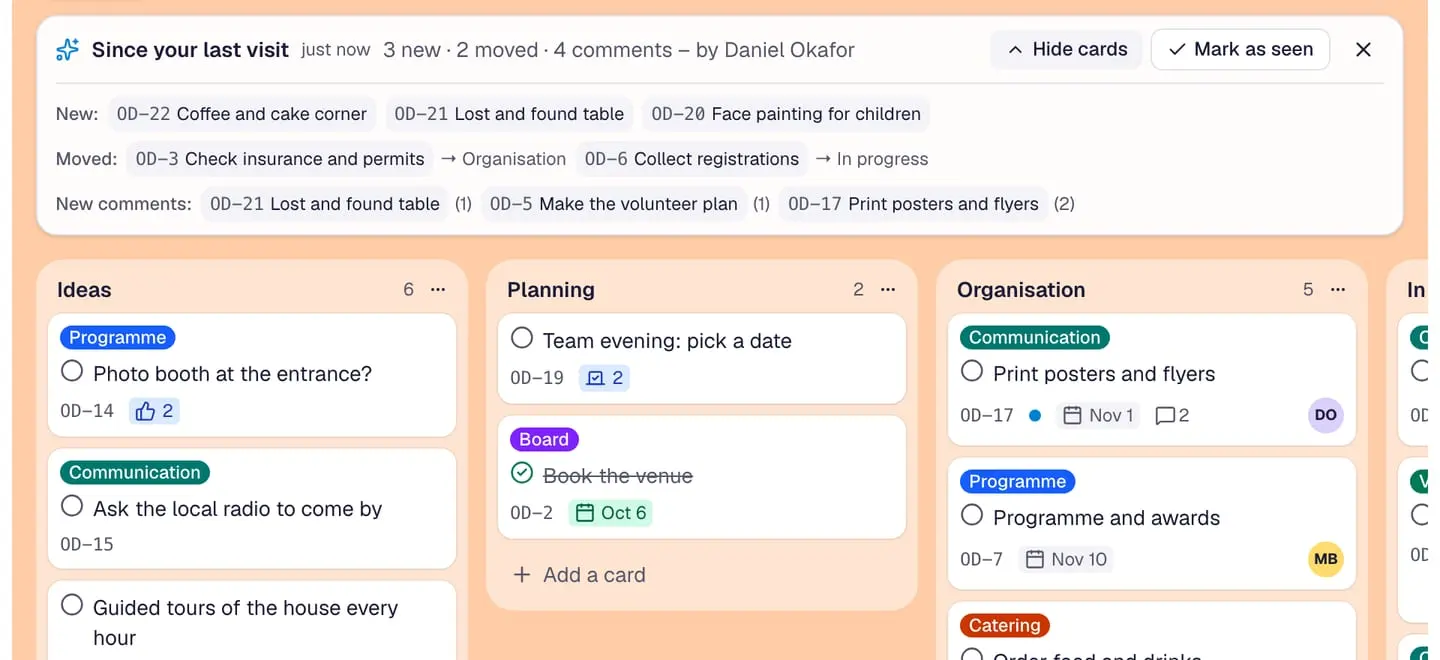
Since your last visit
Back on a board after a while, a strip sums up what others changed, and every changed card carries a dot.
- Video: the board setting marks stale cards after 14 days, and the forgotten open cards get an hourglass with their days.
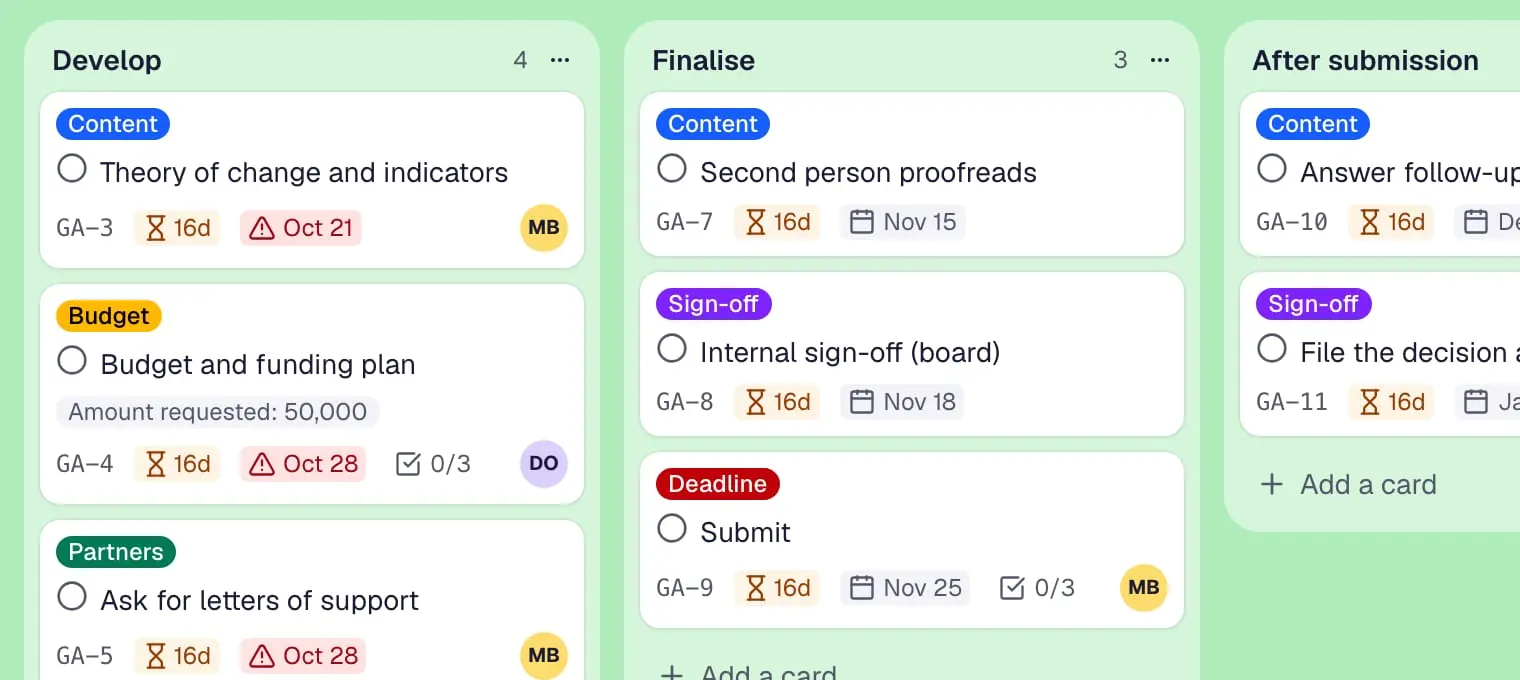
Stale cards
Open cards without activity for a chosen number of days get a small marker, so forgotten work stands out.
- Video: the board’s activity is open while a colleague moves a card; his line appears at the top.
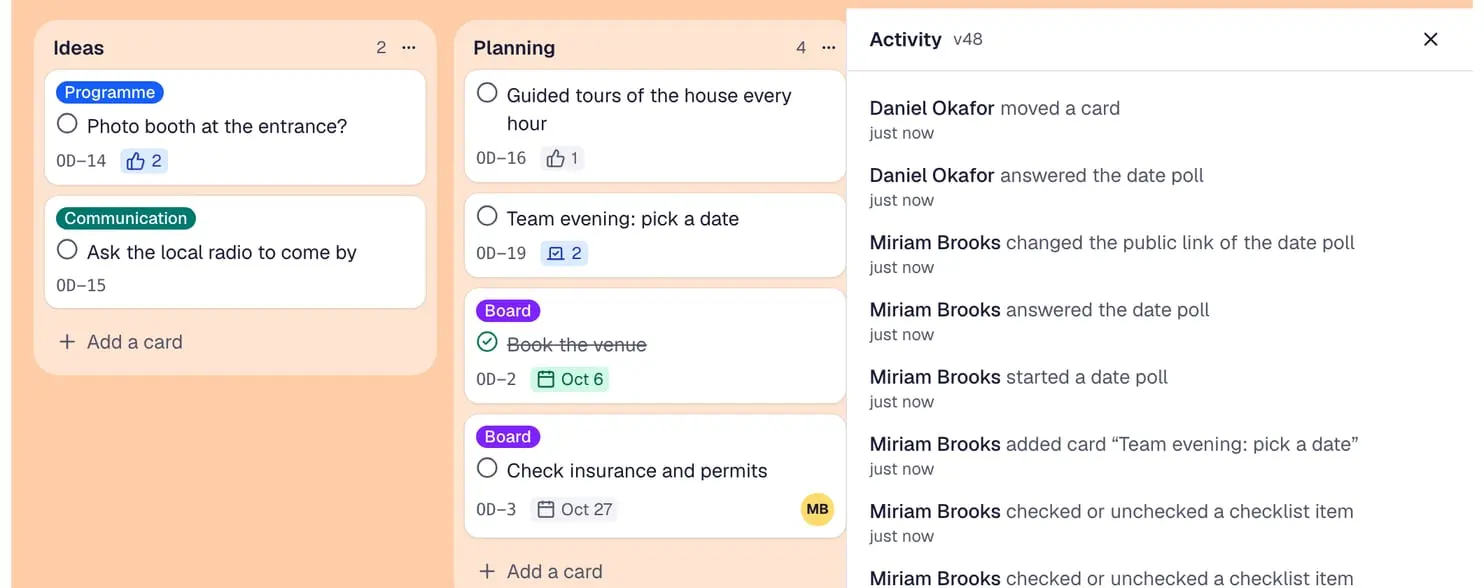
Activity
Every change is on record – in the activity of a card, of a board and of all your boards.
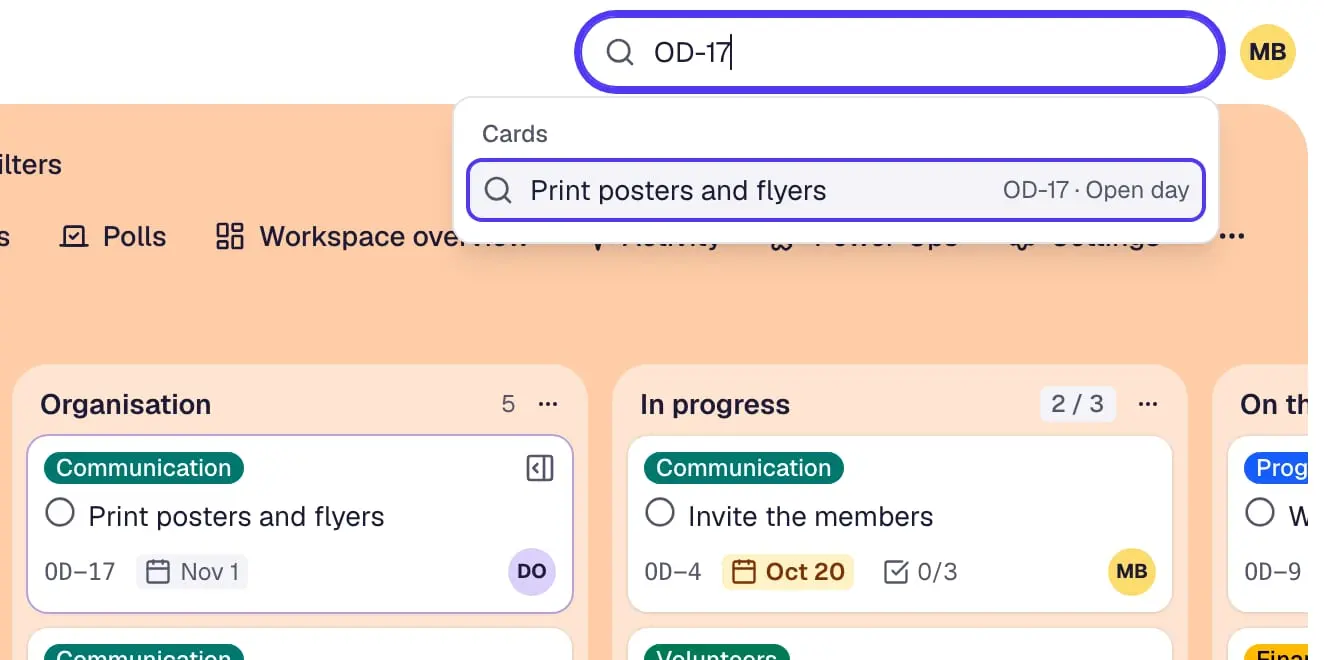
- Video: a card’s number typed into the search finds the card first; the same number is on the card.
Card numbers
Every card has a short number such as GEM-12 that never changes – name a card by it on the phone or in the minutes, and search finds it.
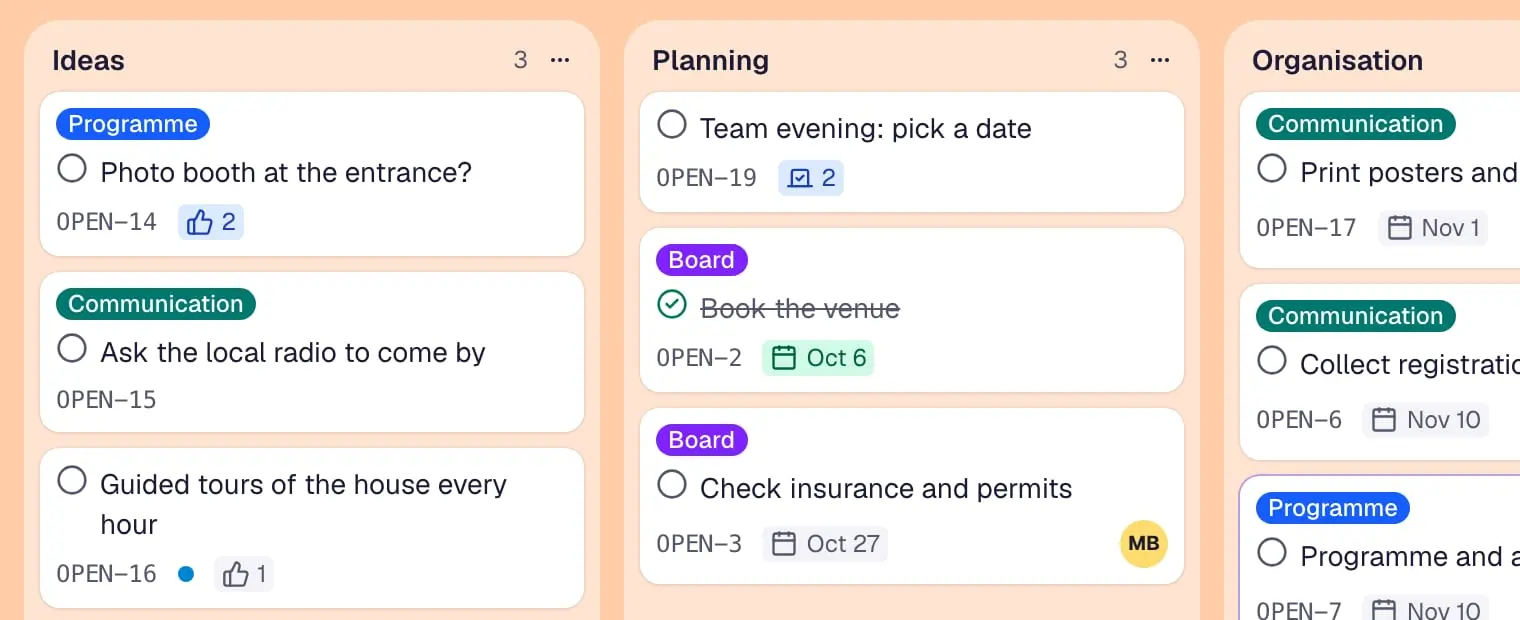
- Video: the board key changes in the board’s settings, and every card number on the board follows at once.
Renaming the board key
Board admins rename the key in front of the card numbers or hide the numbers – old links and searches keep working.
Undo, archive and order
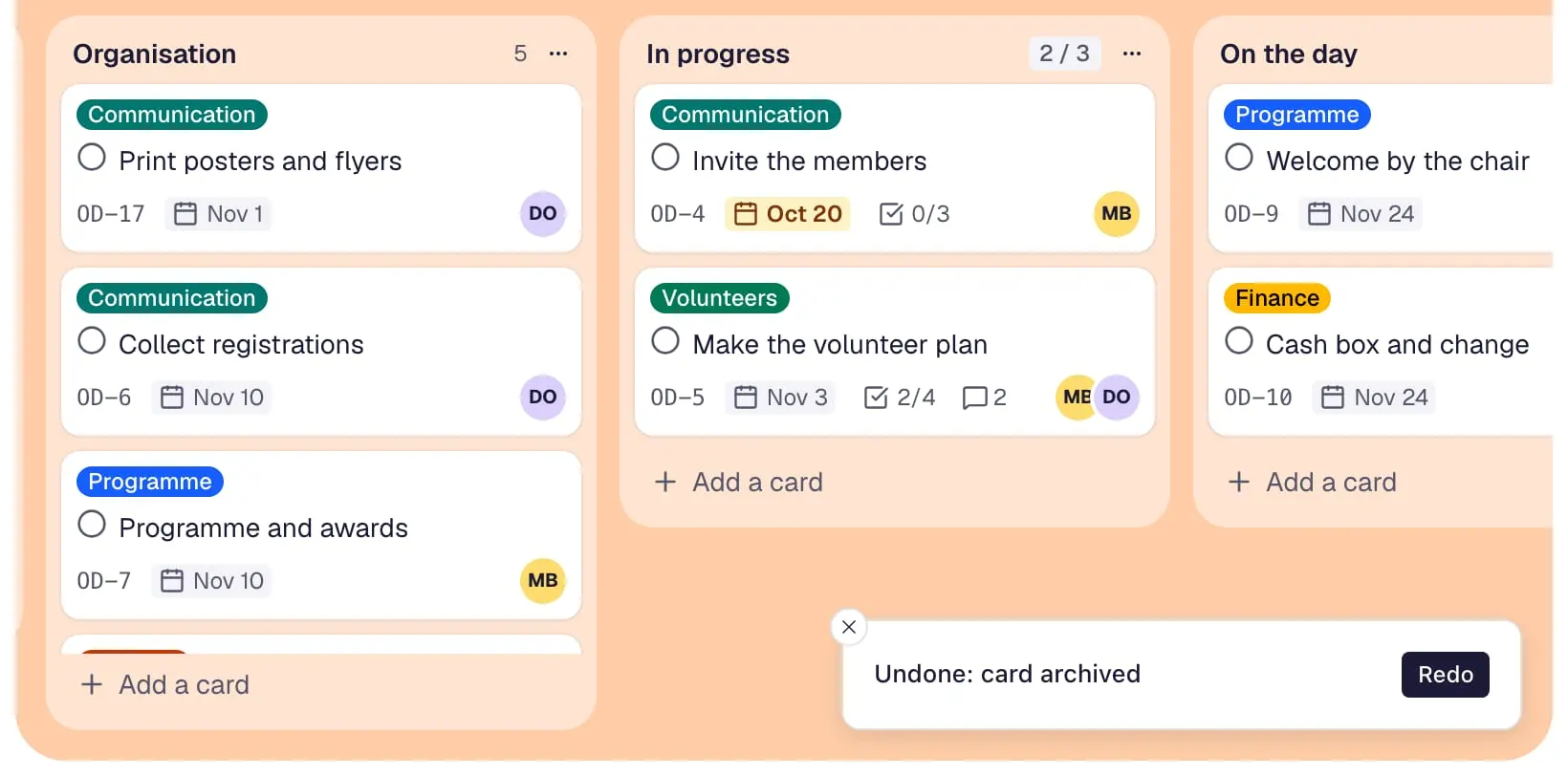
- Video: a card is archived by mistake, and ⌘Z puts it back in its place.
Undo and redo
Ctrl+Z or ⌘Z takes back your last changes on a board step by step – moves, archivings, renames and more – and Ctrl+Shift+Z brings them back.
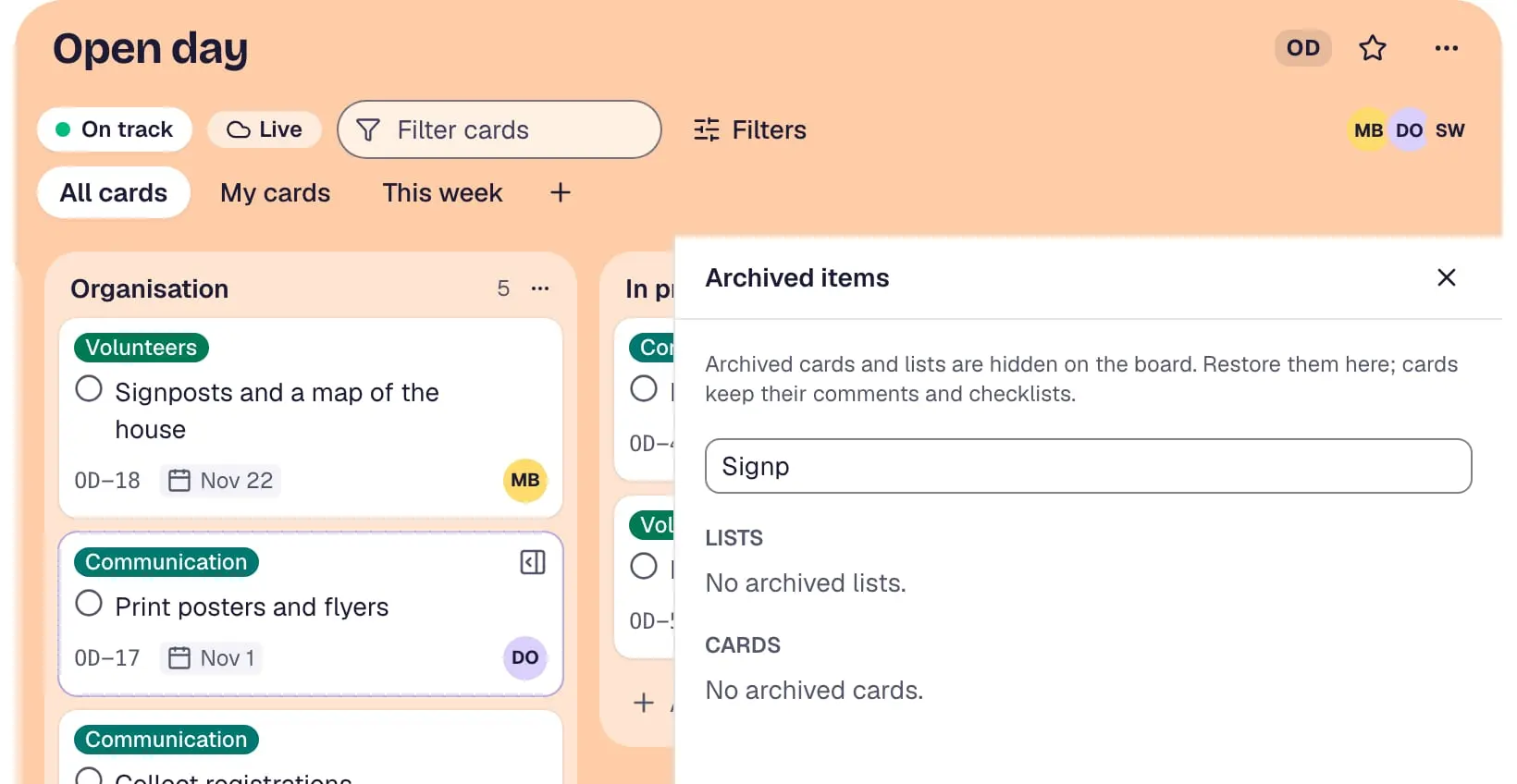
- Video: the board’s archived items open in the sidebar; a search, and “Restore” puts the card back into its list.
Archived items
Archived lists and cards wait in a sidebar of the board – search them and restore them with one click.
- Video: a finished board is archived in its settings, shows up on the workspace’s archive page, and “Restore” brings it back.
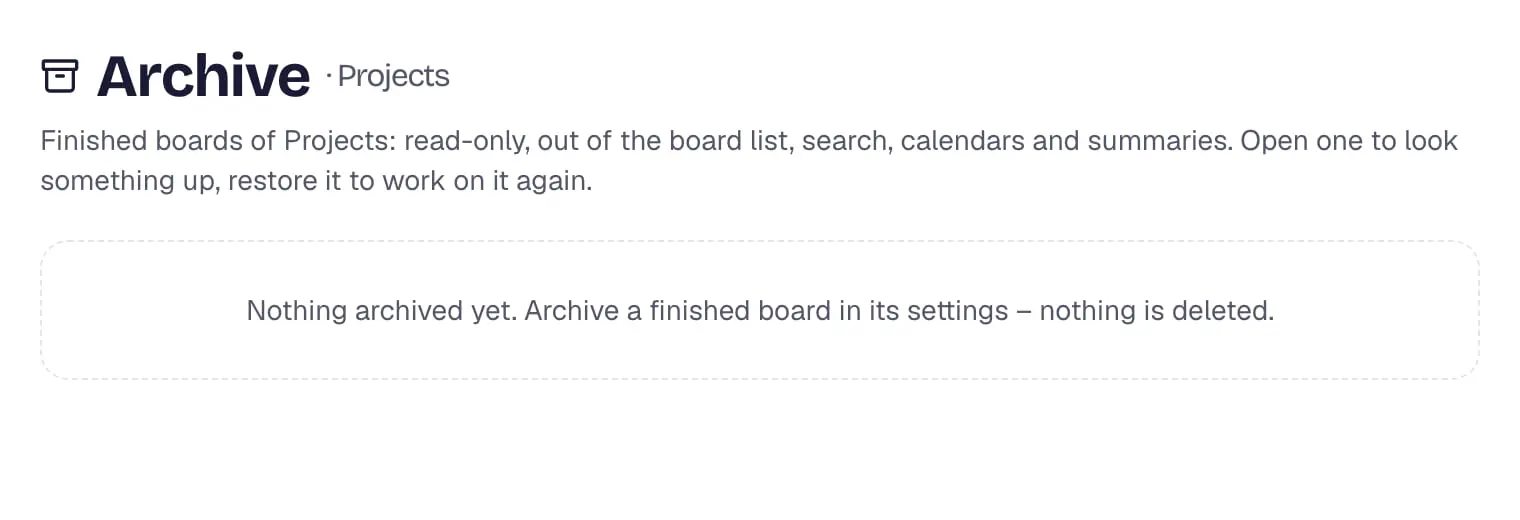
Board archive
Finished boards go to the workspace’s archive – read-only and out of the way, searchable and restorable at any time.
- Video: on a board, ? opens the list of keyboard shortcuts; F filters the cards and Escape clears the filter.
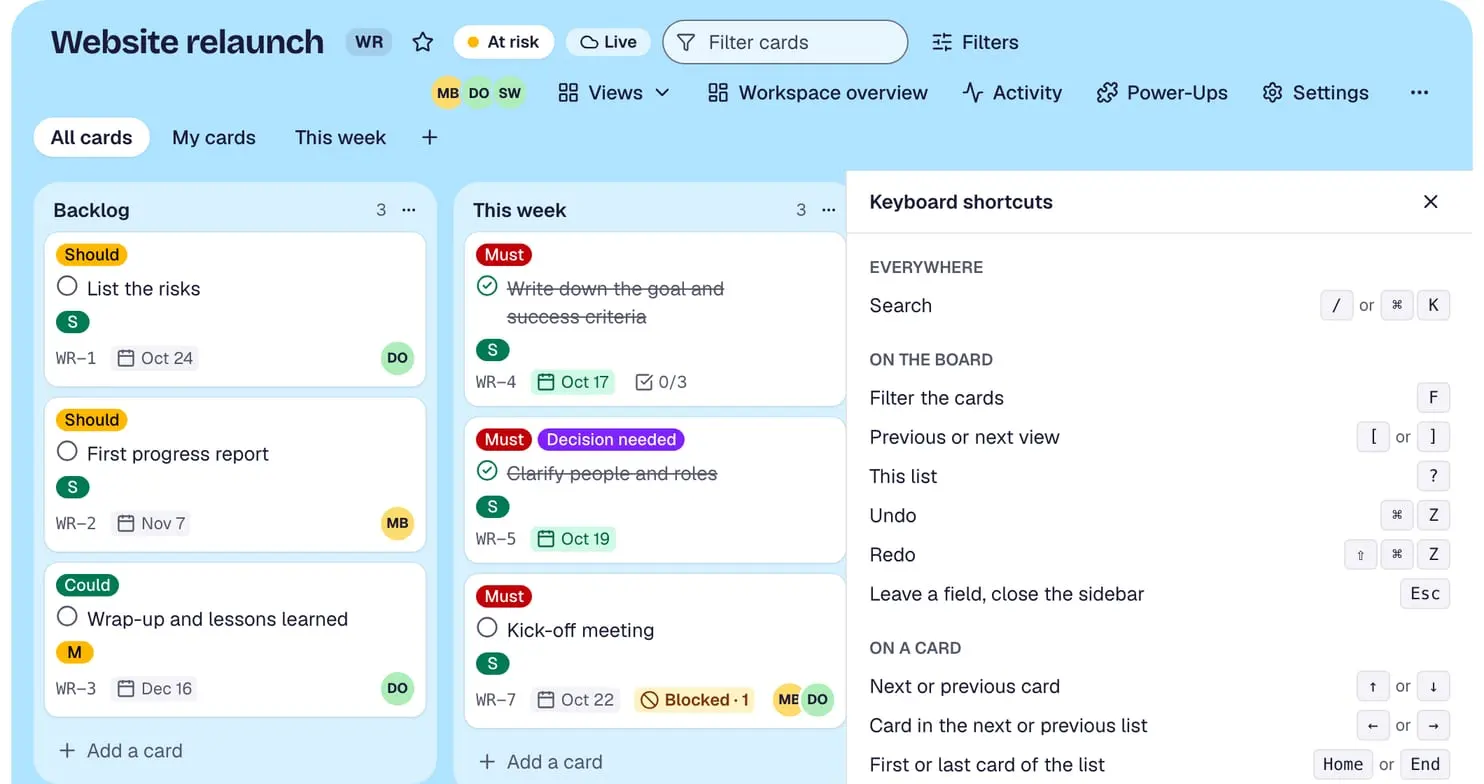
Keyboard shortcuts
Press ? for the list – / or ⌘K searches, F filters, the arrow keys go from card to card and F2 renames one.
Finding and overview
- Video: the search finds the boards and cards with “plan” in every project.
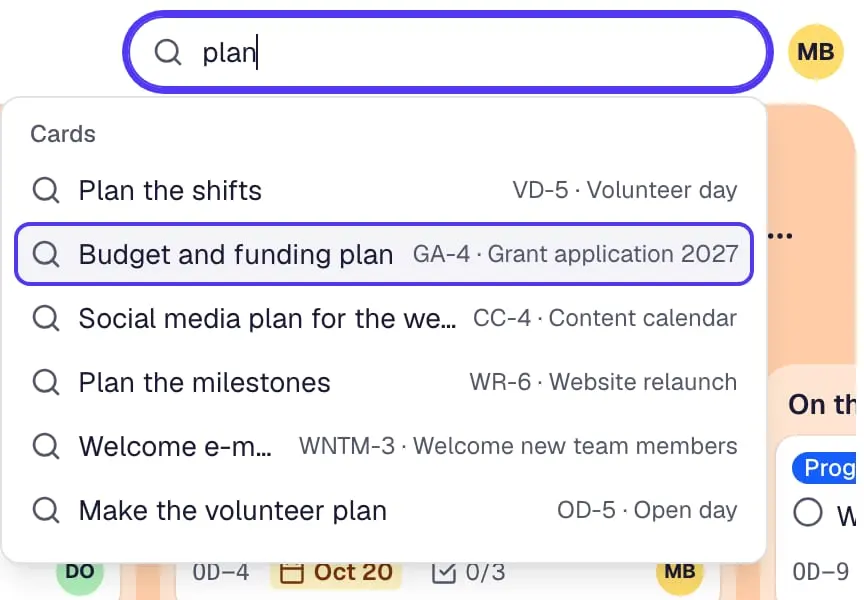
Search with / or ⌘K
One keystroke opens a search across every board you can open – boards, cards and pages as you type.
- Video: with “My cards” and “This week”, the board shows only what matters now.
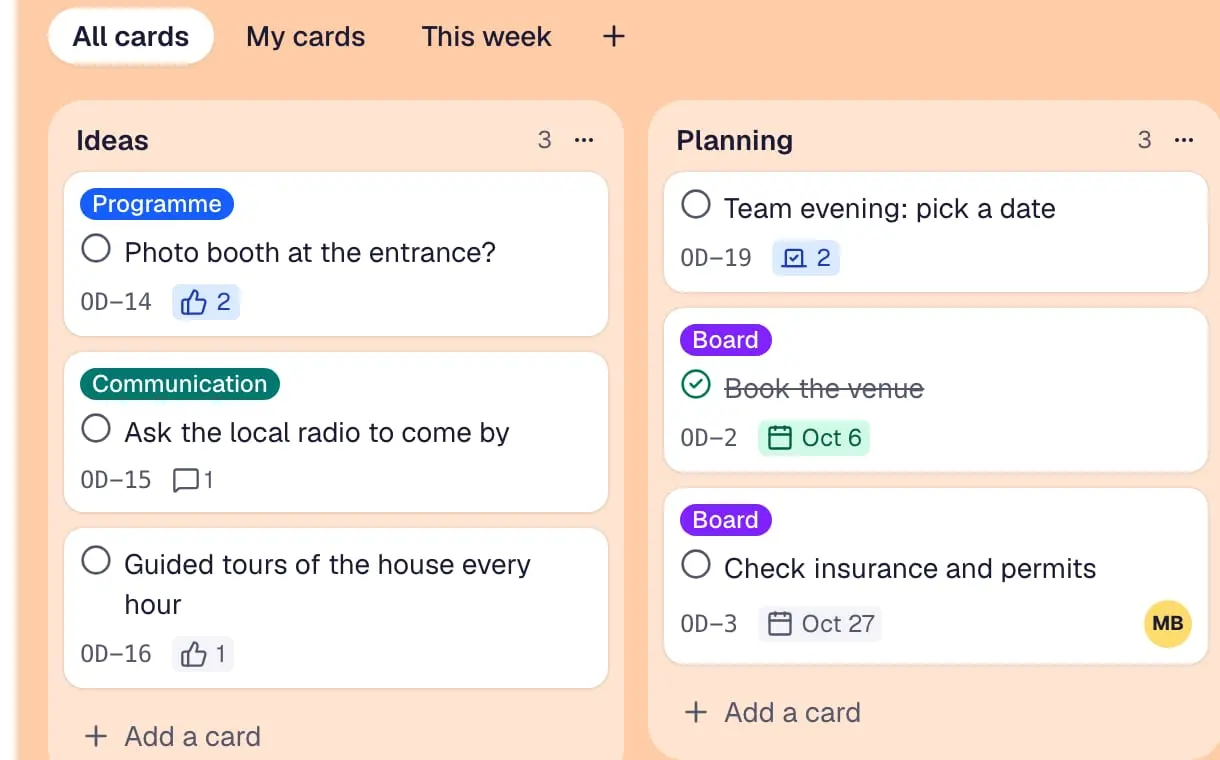
Board views as tabs
All cards, My cards and This week are tabs on every board, and any filter can be saved as a tab for everyone or just for you.
- Video: in the workspace calendar, a due date moves to the next day with drag and drop, between the cards of the other projects.
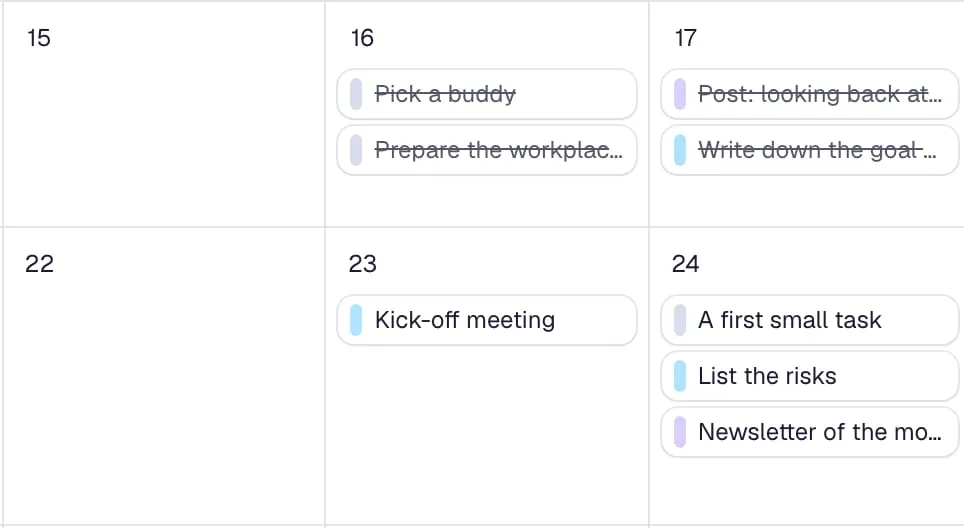
Workspace calendar
Every due date, dated checklist item, booking and final poll date of a workspace in one calendar – drag a card to another day.
- Video: a status update “At risk” is published for the open day, and the current status turns yellow.
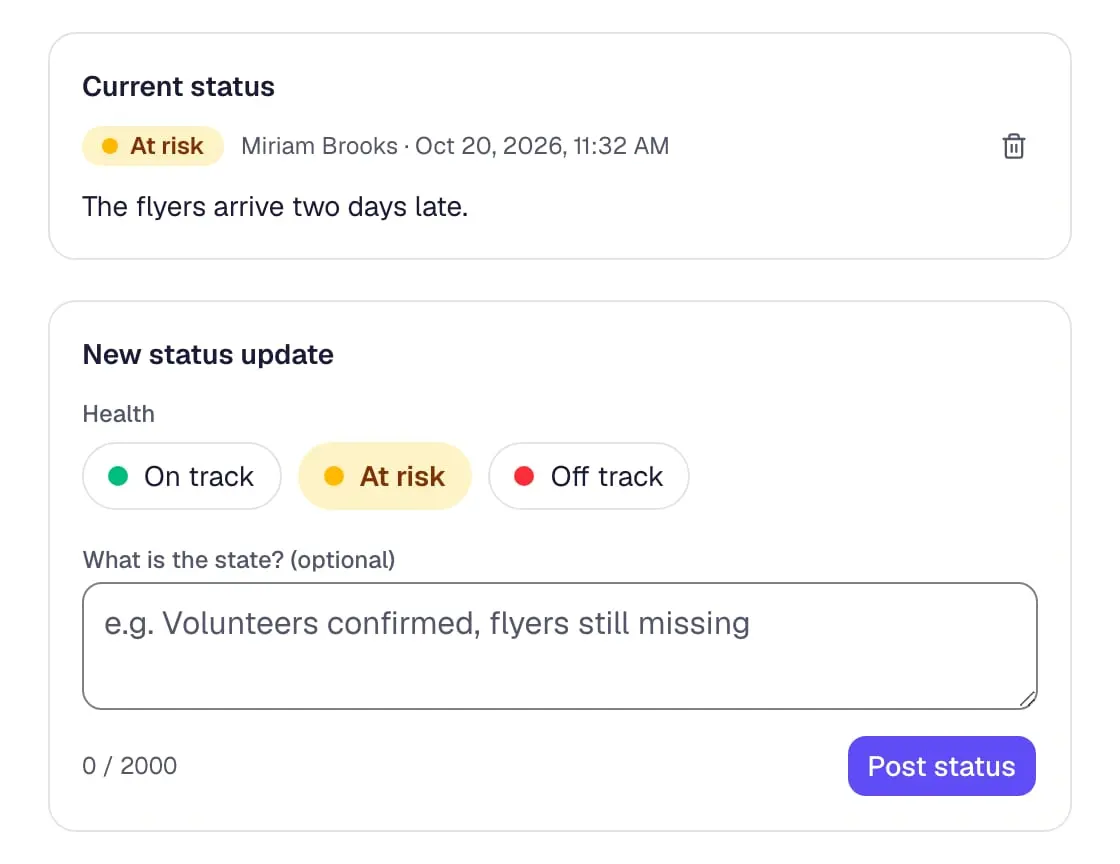
Status updates
Editors tell everyone how a board is doing – on track, at risk or off track – with a short text in the board header and on the dashboard.
For you
The home page starts with what is due for you today and in the next days, what waits for your answer and what changed on your boards – in sections you can hide and reorder.
Search with operators
The search page looks through titles, descriptions, comments and field values, with operators such as #label, @me or due:overdue – umlauts optional.
6 more features
My cards
Everything assigned to you across all boards in one list – and apart from it the cards you created that nobody has taken yet.
Board filter
Show only the cards with a label, person, due date, field value, checklist item or status – or press F and type a title or number.
Workspace dashboard
Open, overdue and done cards, the status of every board and the open work per person across a workspace, on one page.
Filters across boards
Save filters that work on every board – such as all communication cards of every project – and show them in the calendar.
Weekly status reminder
When a board’s newest status update is older than a week, its admins get a reminder to post a new one.
Status report
The newest status of every board in a workspace on one page, to print or save as a PDF for the committee meeting.
Notifications
Inbox
Assignments, mentions, comments on your cards, reminders and answers to your polls land in one inbox.
Push notifications
Push notifications on phone and computer – on iPhone and iPad too, once Contals is on the Home Screen – with or without card names on the lock screen.
Your choice per kind
For each kind of notification – assignments, mentions, due reminders, comments, status updates, polls and bookings – choose the app, push or e-mail.
Quiet hours
No push notifications and no e-mails in your quiet hours – e-mails wait until they end.
Due reminders
A reminder before a card is due – on the day, a day, two days or a week before, or at a set time – by your default or per card.
Notification e-mails
Team and BusinessNotifications you have not read in Contals arrive collected in one e-mail, never more often than you choose.
2 more features
Summary e-mail
One e-mail a week with what waits for you and what changed on your boards – an empty one is never sent.
Installable app
Add Contals to the home screen or desktop – it opens like an app, without an app store.
Planning and templates
- Video: the template gallery filtered by kind of team – schools, nonprofits, then teams and projects.
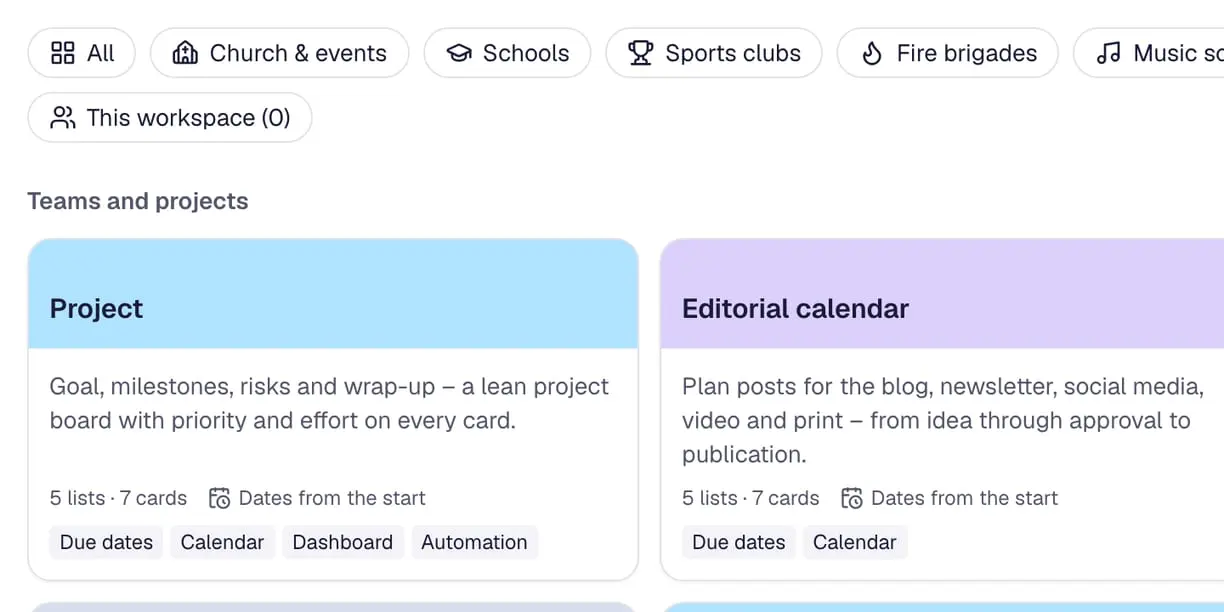
Template gallery
Ready-made boards for churches, schools, sports clubs, fire brigades, music schools, NGOs and teams – with lists, cards, checklists and due dates.
- Video: on a template, the date of the event moves two months later – every due date of the preview counts back from it.
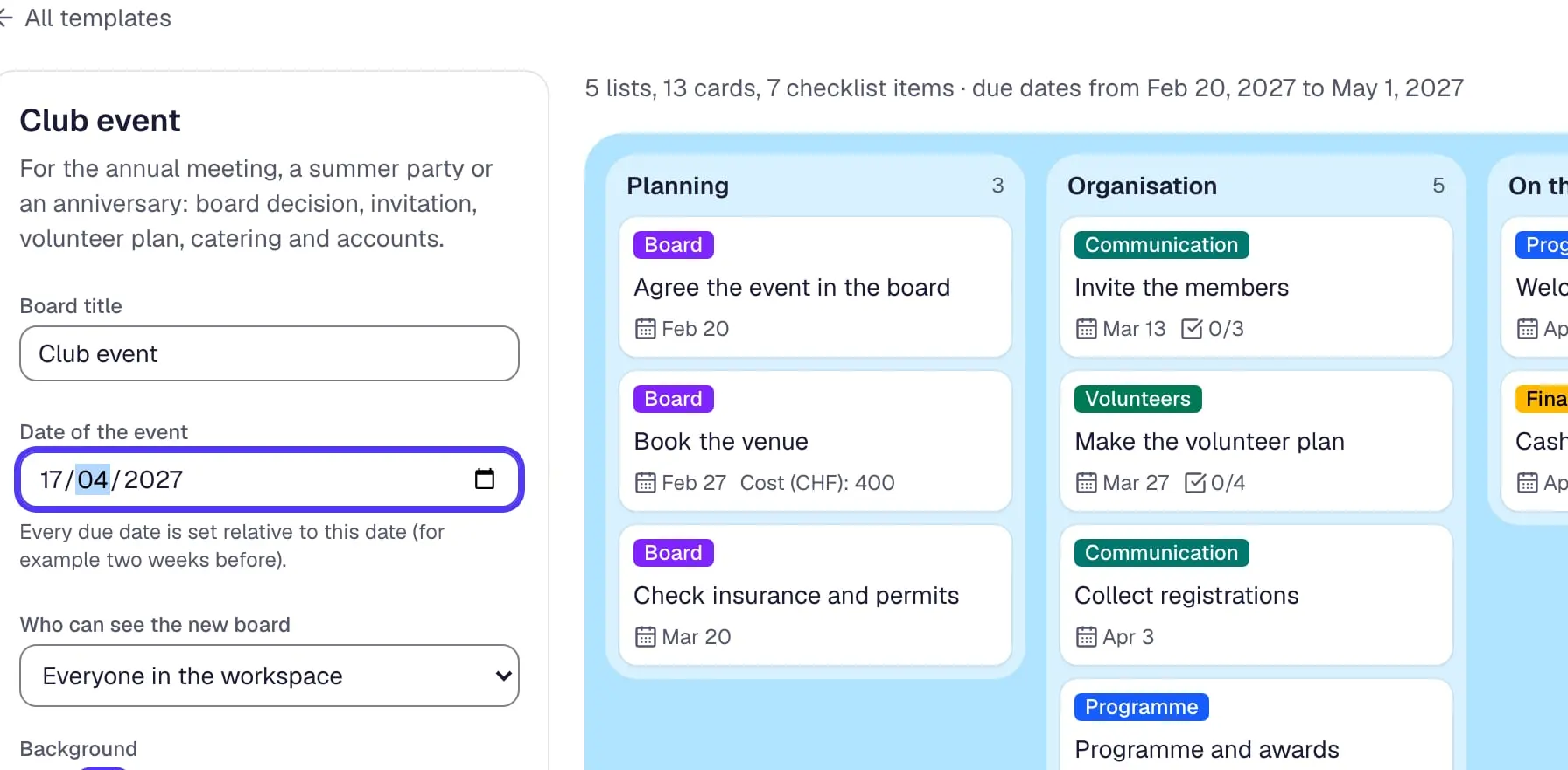
Dates that count back
Pick the date of your event, and every due date of the template counts back from it – two weeks before, the day before.
Your own templates
Save any board as a template of your workspace – lists, cards, checklists, labels, fields and dates included.
Community templates
Start from templates other organizations share – reviewed by Contals and free to use under CC0.
Copy cards, lists and boards
Copy a card, a list or a whole board – with or without its cards, checklists, labels, fields and members.
2 more features
Move to another board
Move cards and lists to another board – comments, checklists and links travel along.
Calendar subscriptions
Your cards, a whole board or a whole workspace in Google Calendar, Outlook or Apple Calendar, through a private link.
Power-Ups
- Video: on a board’s Power-Ups page, two more Power-Ups are switched on with one click each.
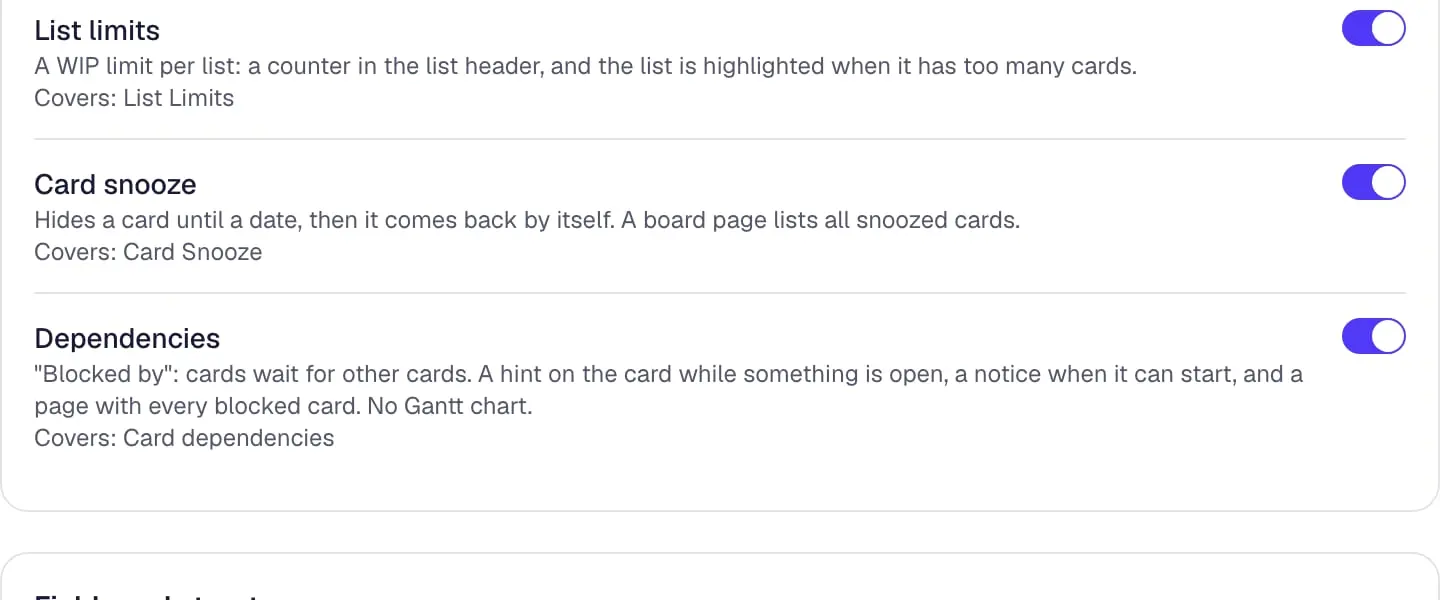
Power-Ups per board
Board admins switch optional features on for one board – off hides their data, on shows it again – and workspaces choose defaults for new boards.
- Video: a due date is set in the card’s details, and the card on the board shows it at once.
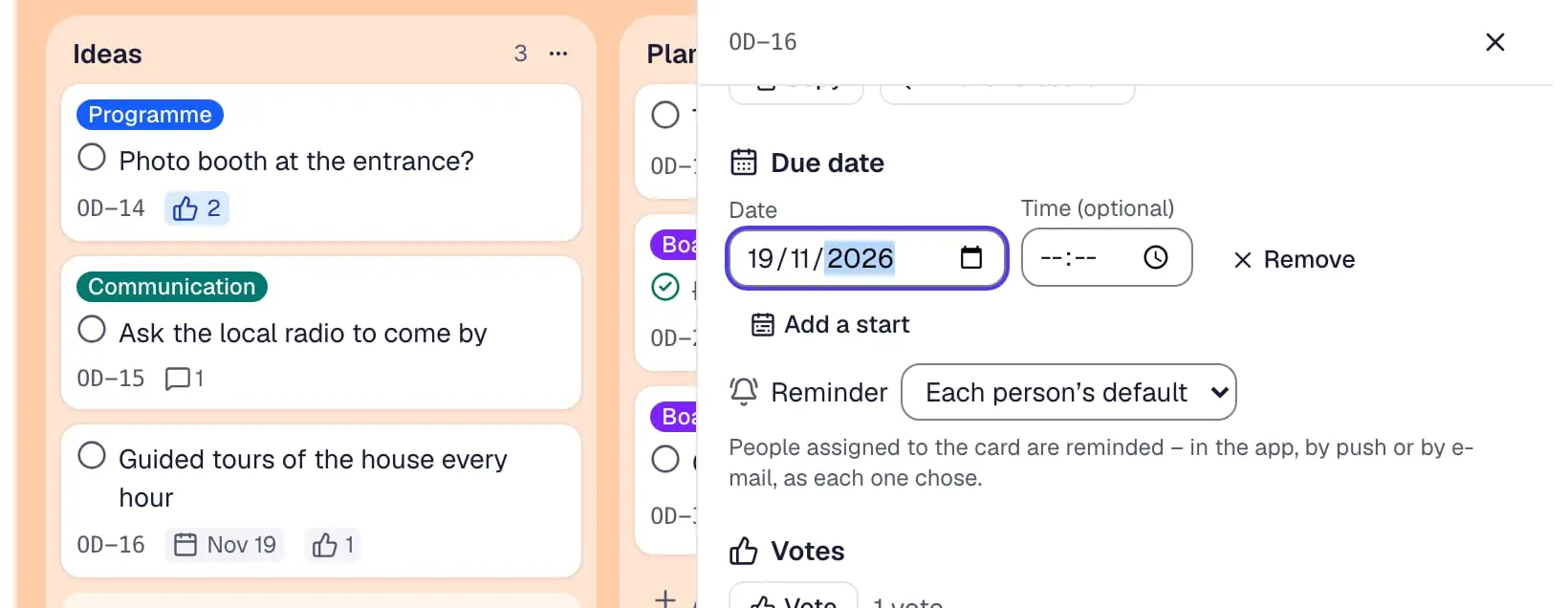
Due dates
Due dates on cards, with a time and a start if you like, shown as a date or a countdown and marked when overdue.
- Video: in a board’s calendar, a card without a date is dragged onto a day of the week.
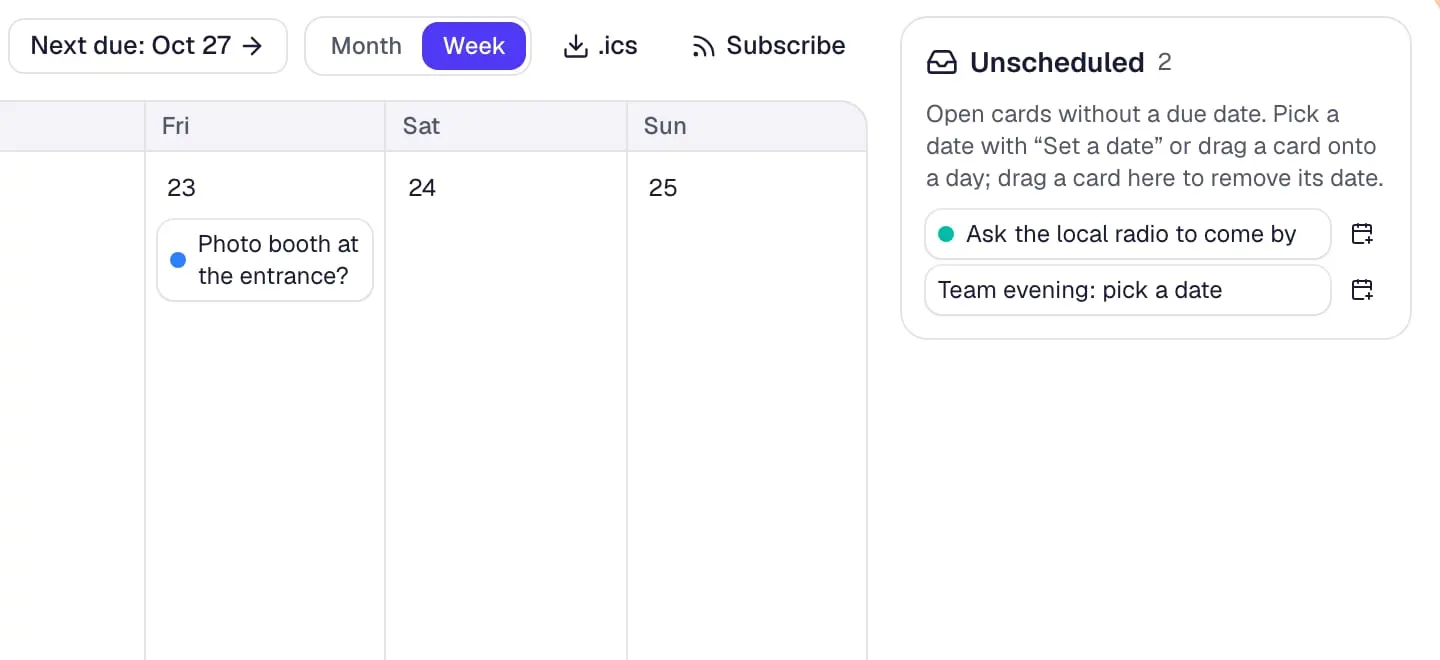
Calendar
The board’s cards by due date in a month and a week view – drag a card to another day, give undated cards a date, export as .ics.
- Video: the list “In progress” holds three cards – a fourth turns its counter and the list red.
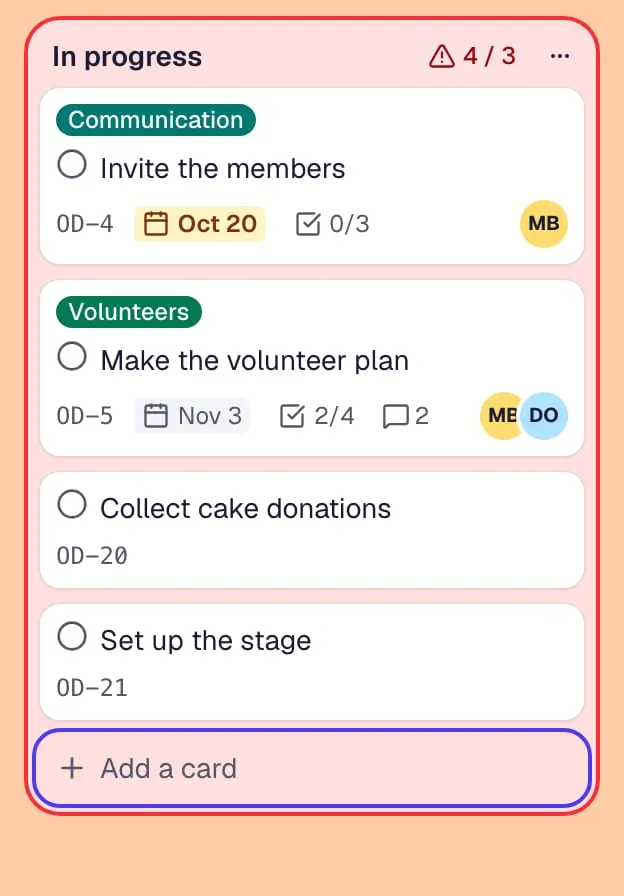
List limits
A limit per list – the header counts the cards, and the list turns red when it holds too many.
- Video: a card is snoozed until next week and leaves the list until then.
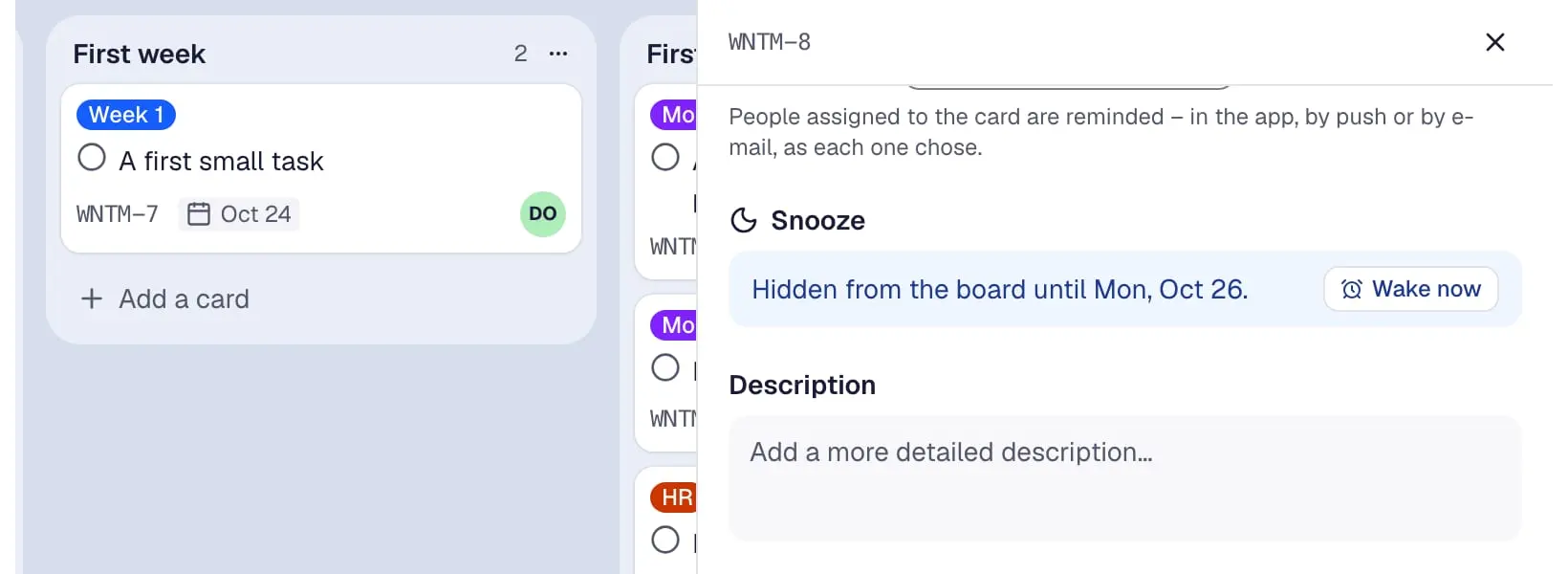
Card snooze
Snooze a card until a date – it comes back by itself, and a board page lists every snoozed card.
- Video: the milestone plan is ticked off – the kick-off meeting that waited for it is no longer blocked.
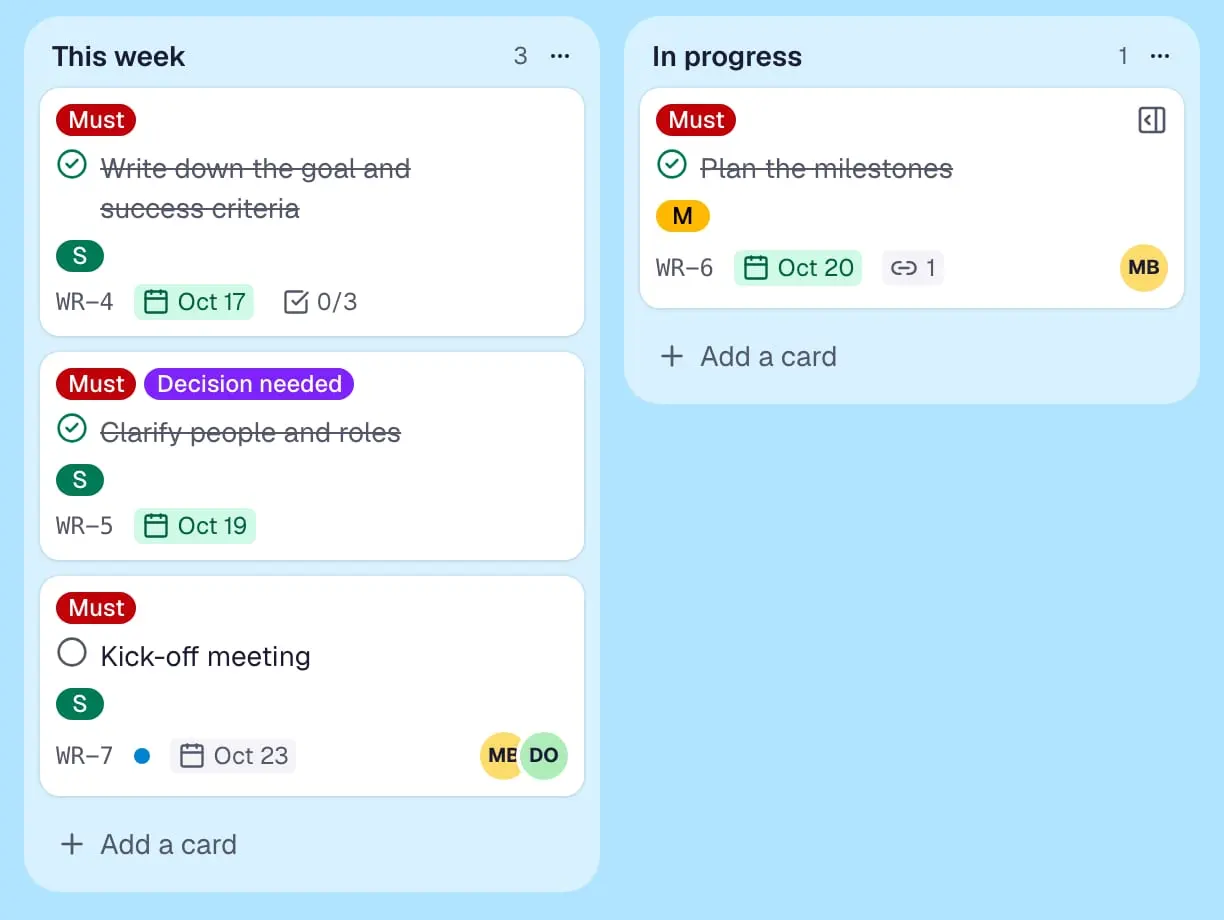
Dependencies
A card waits for other cards – it shows “Blocked” until they are done, and its people hear when it can start.
12 more features
- Video: on the votes page, one vote given and one taken back – and the ranking of the ideas turns round.
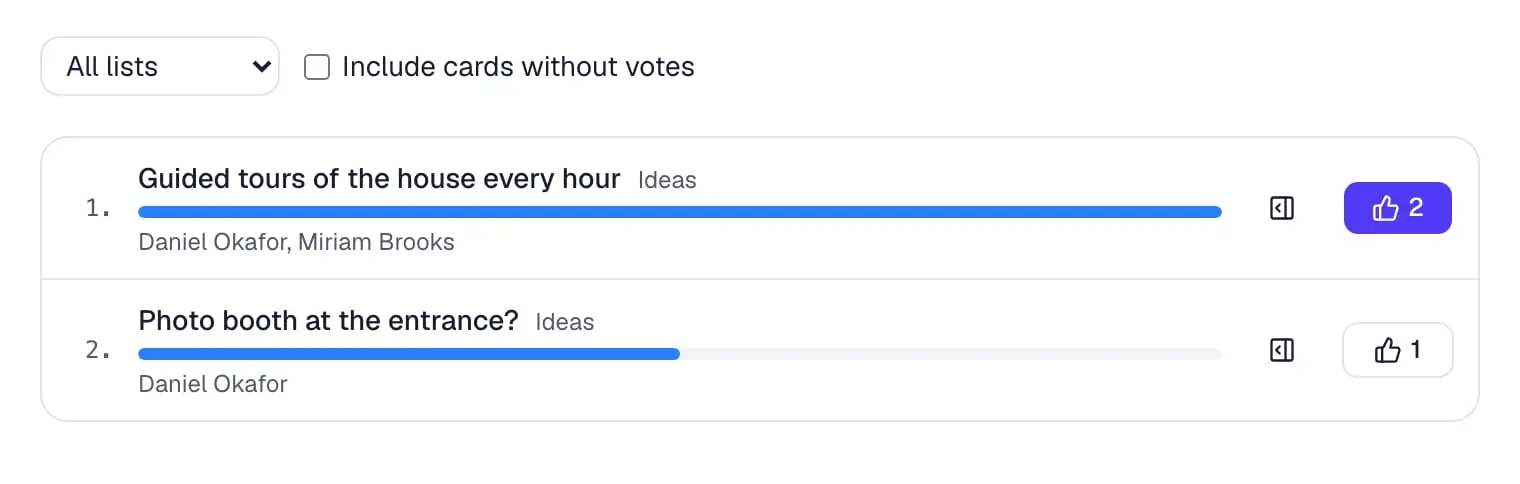
Voting
One vote per person and card, a count on the card and a board page that ranks the cards by votes.
- Video: the board’s read-me page gets one more line, edited right on the page.
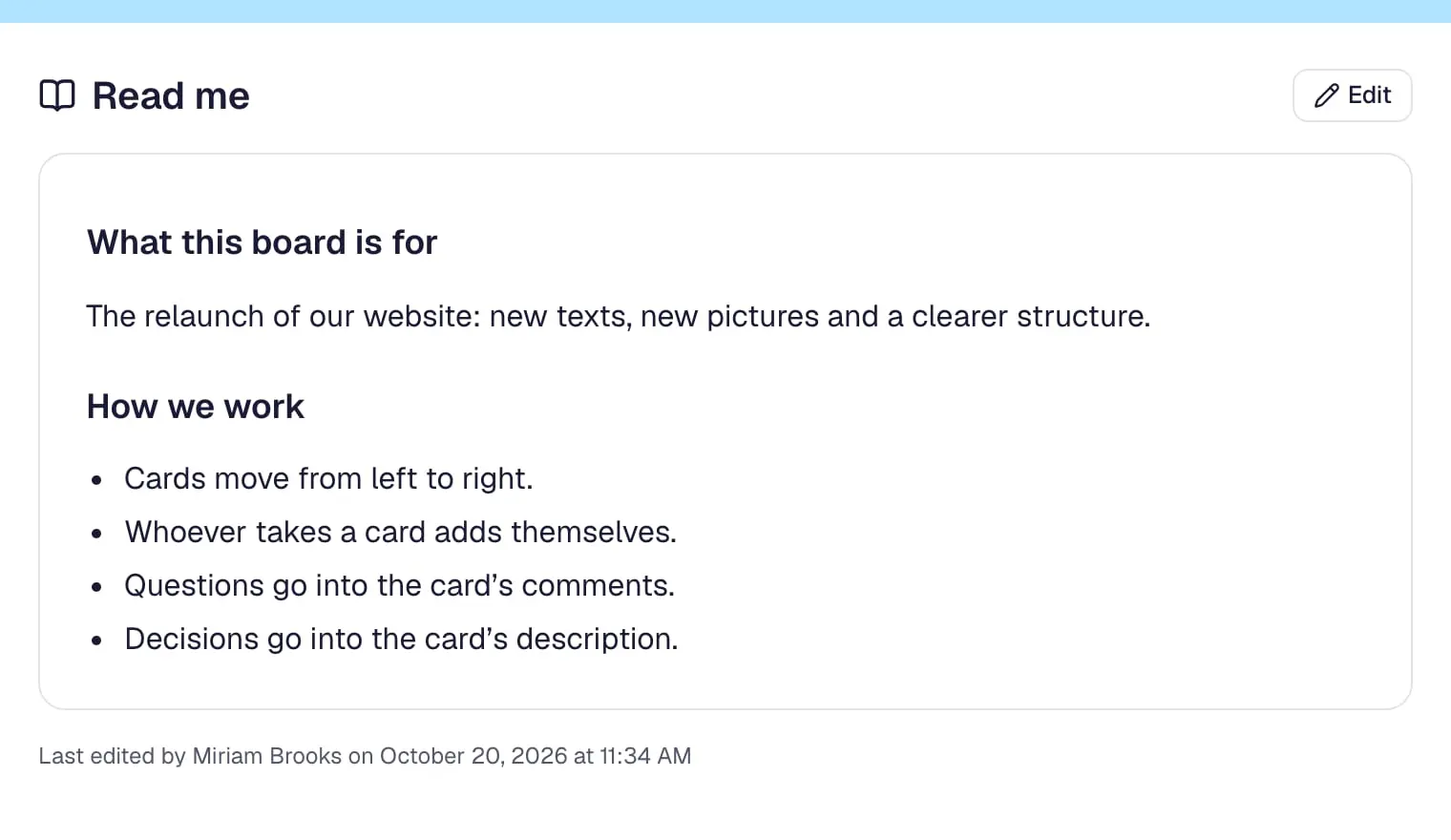
Read me
A board page that explains the board – purpose, how it works, links – in simple Markdown, edited right on the page.
- Video: a tracking number on a card – the carrier is recognised, with a link to track the parcel.
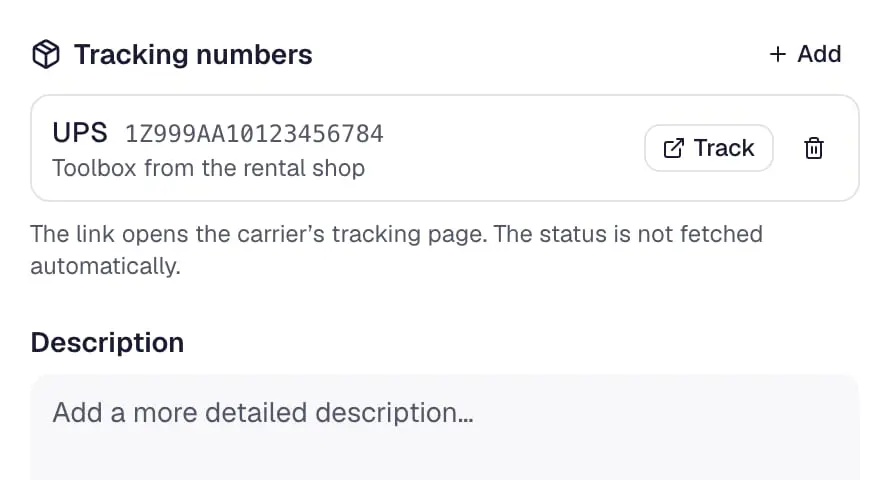
Package tracker
Tracking numbers on cards – Swiss Post, DHL, DPD, UPS, GLS, FedEx and more are detected, with a link to track the parcel.
- Video: weeks pass on a board, and the cards nobody touched fade to grey.
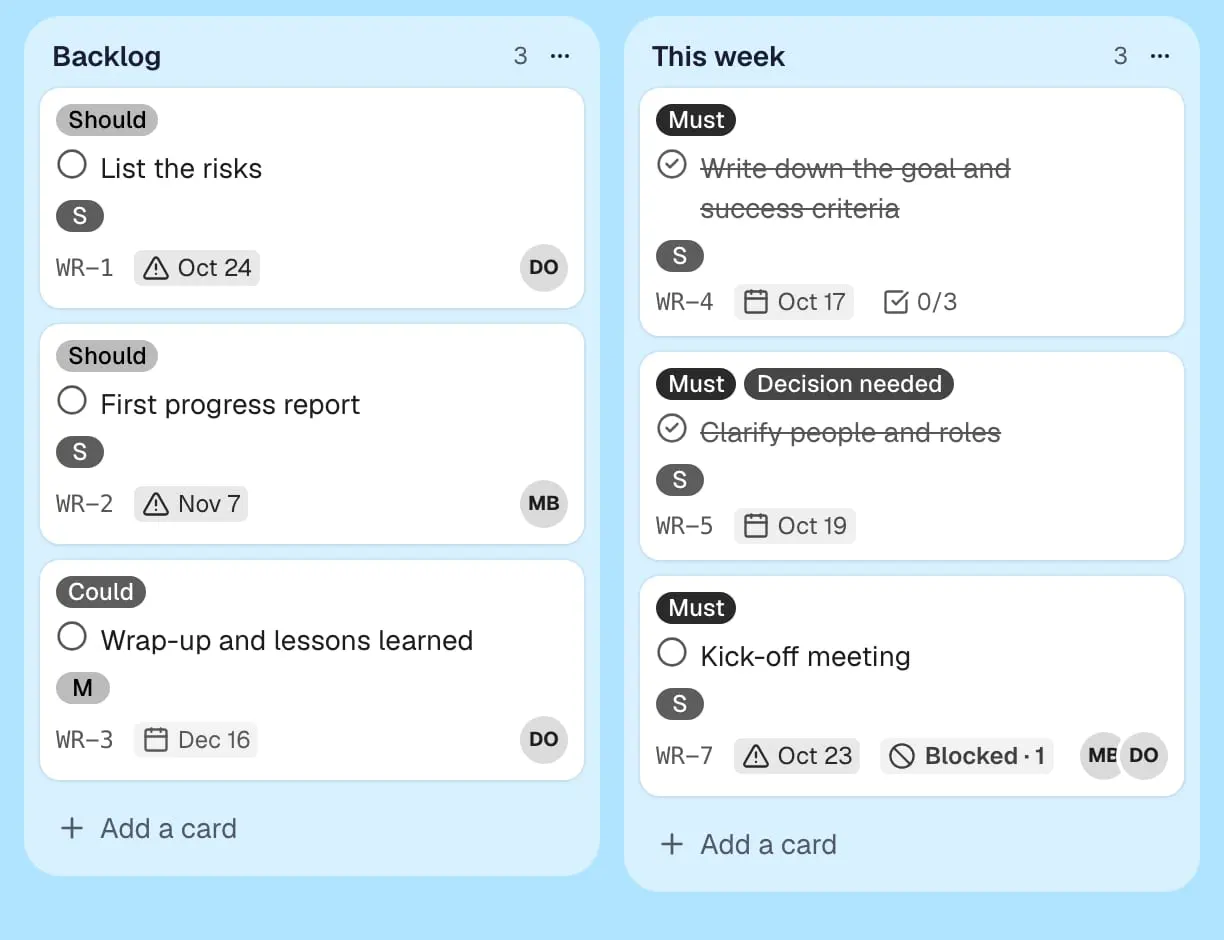
Card aging
Cards without activity fade over time – or yellow like old paper in pirate mode – so forgotten work stands out.
- Video: a board’s dashboard follows along while the team finishes two cards – open, done this week, per list.
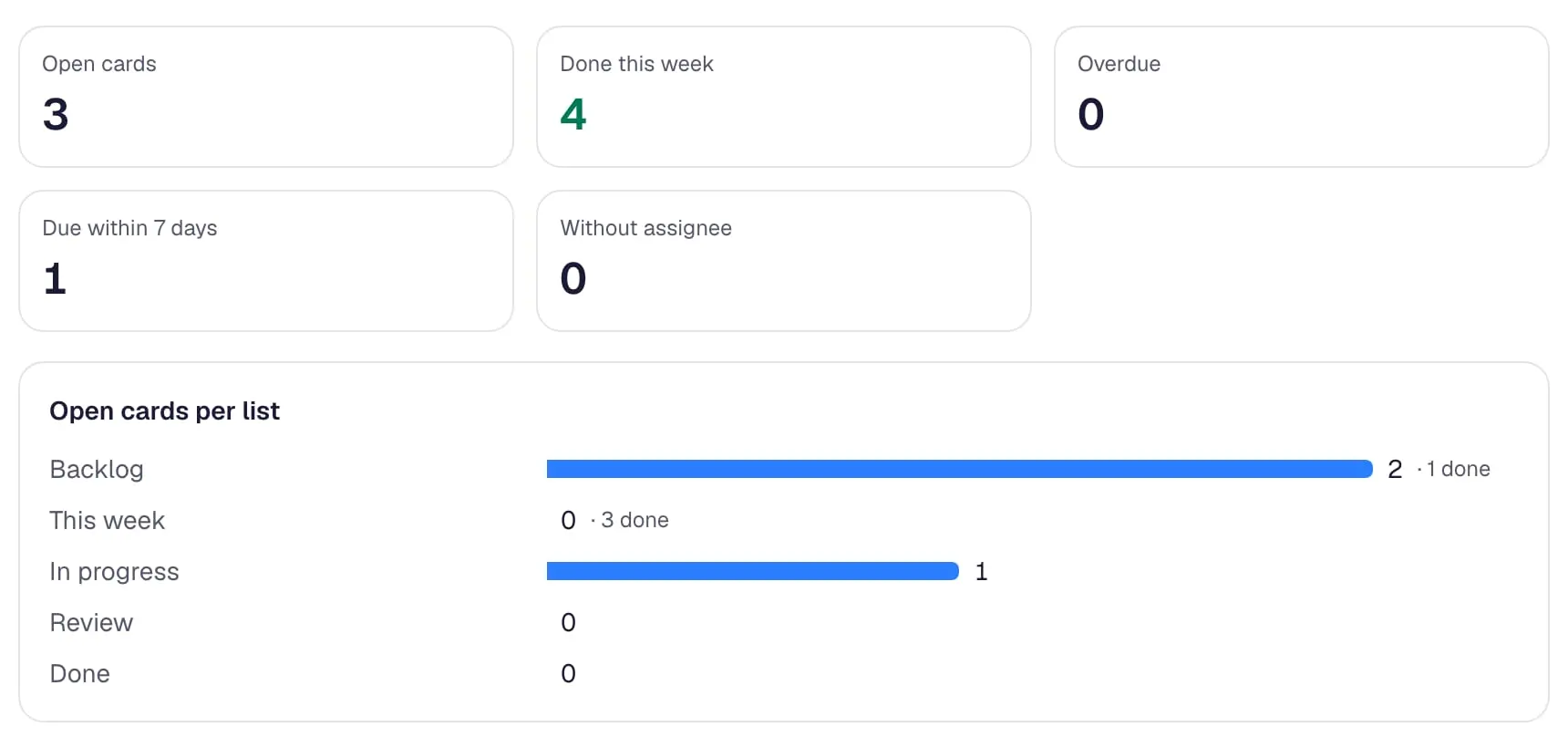
Dashboard
A board page with counters and charts – open, overdue, done this week, cards per list, label and person, and a weekly trend.
- Video: the weekly social media plan is set to repeat every Monday – a copy of the card then arrives by itself.
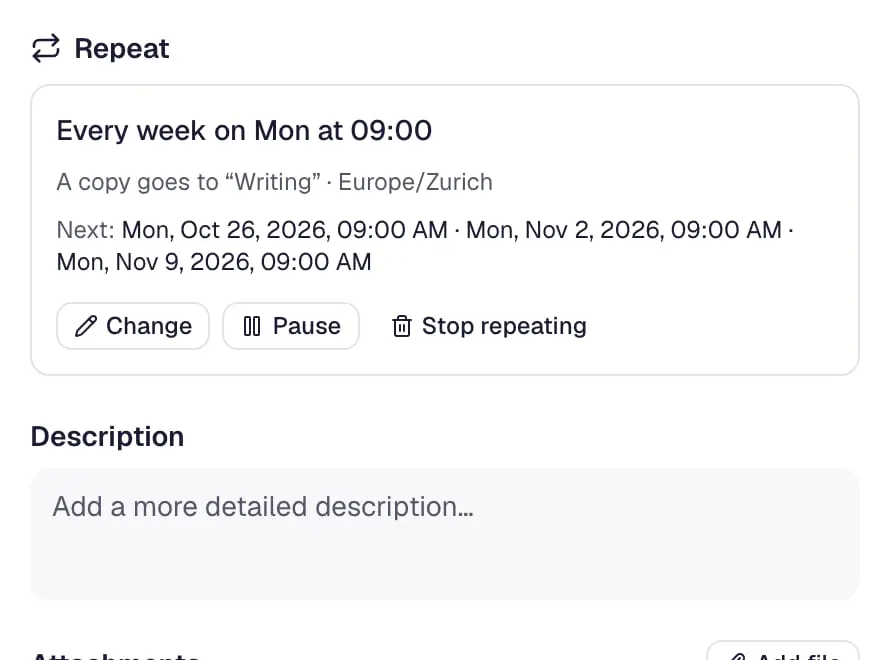
Card repeater
A fresh copy of a card every day, week, month or year – with description, labels, people, checklists and due date.
- Video: a card moves to “Review” – a rule assigns the lead, sets a due date and writes a comment.
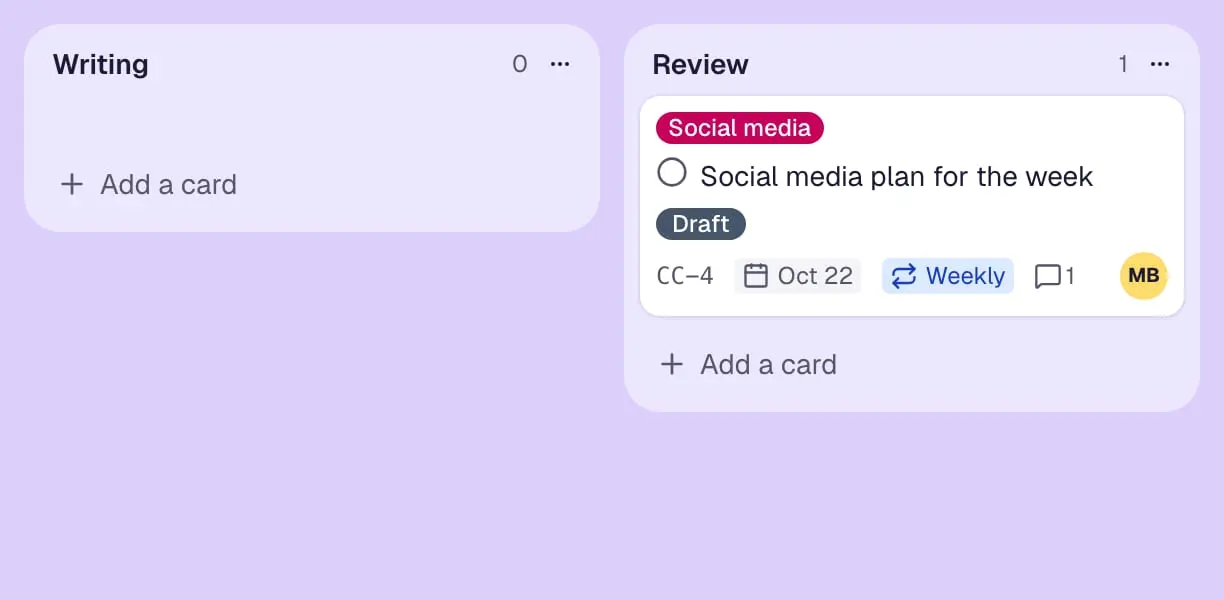
Automation
Rules, schedules and buttons that move, label, assign, date, comment on or archive cards – like Butler in Trello.
- Video: a Google document is attached to a card and shows with its icon and name.
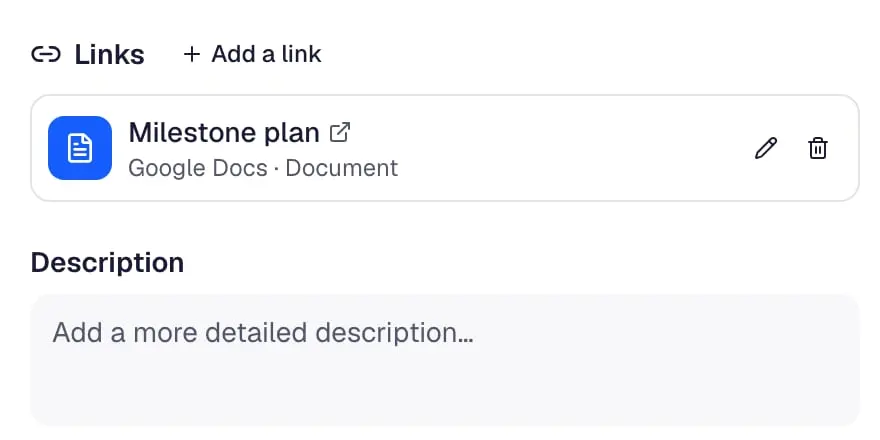
Links and cloud files
Files and items from Google Drive, OneDrive, Dropbox, GitHub, Figma, YouTube and more on cards, shown with icon and name.
- Video: a board is connected to the team’s Slack channel in a few fields – new, moved and finished cards are sent there.
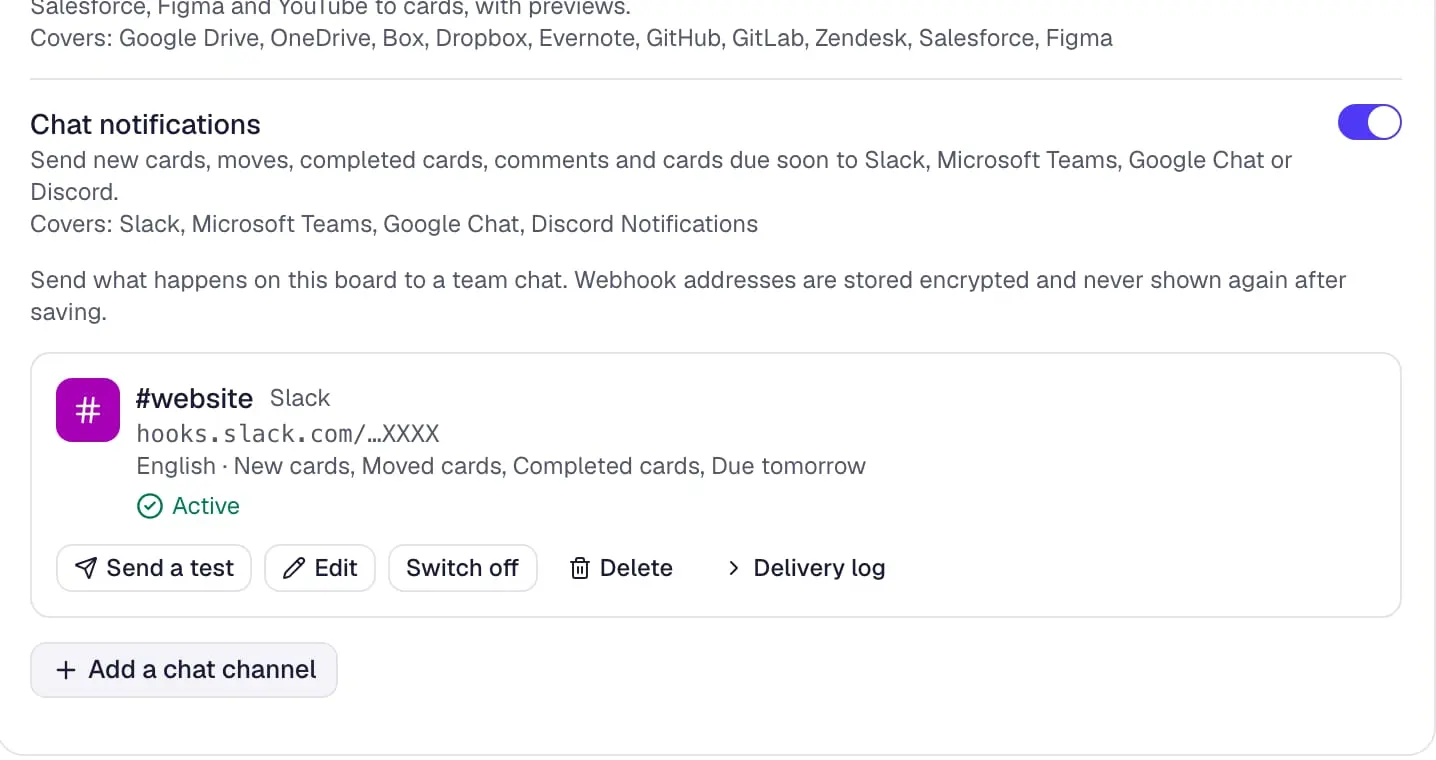
Chat notifications
New cards, moves, finished cards, comments and cards due soon in Slack, Microsoft Teams, Google Chat or Discord.
- Video: the organiser picks the best evening of the date poll – it becomes the card’s due date.
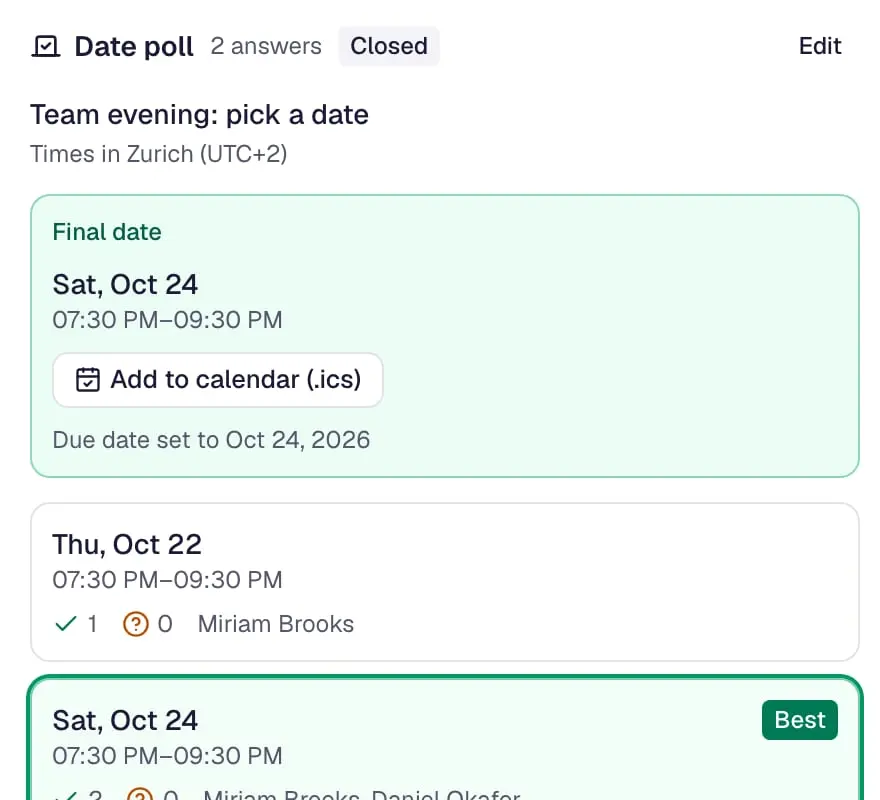
Date poll
Propose dates on a card, let people answer yes, if need be or no, and the chosen date becomes the due date.
- Video: a guest answers the date poll for the team evening on a phone, without an account.
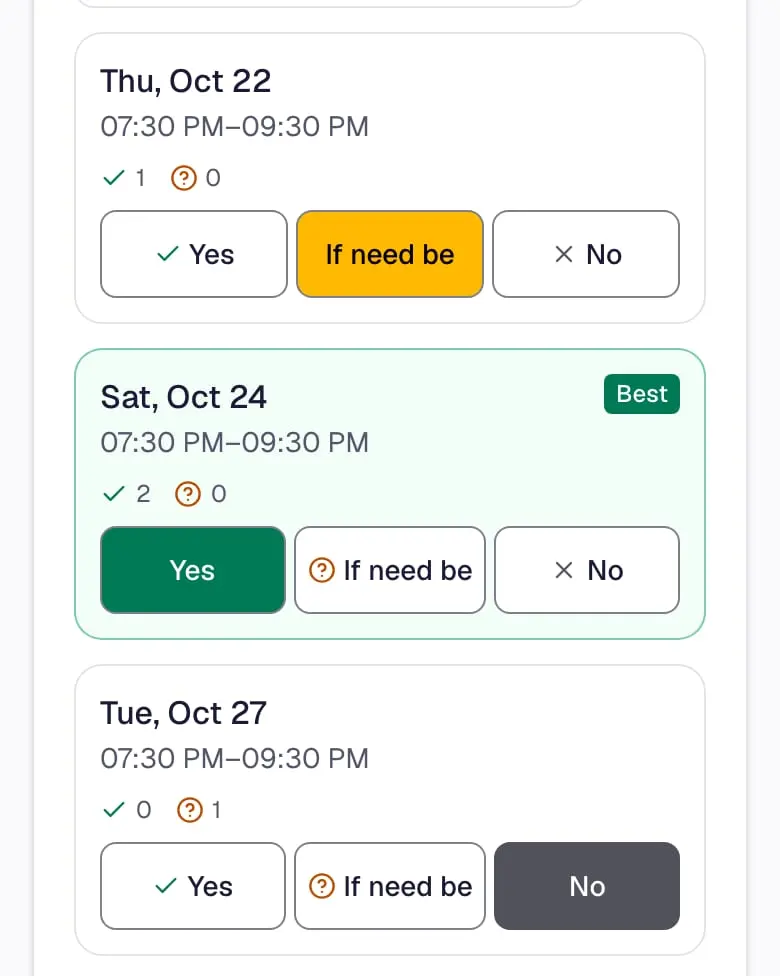
Voting without an account
Guests answer a date poll through a link on any phone, without an account – and see which organization is asking.
- Video: on a phone, someone books a get-to-know-you talk on the public booking page – confirmed at once.
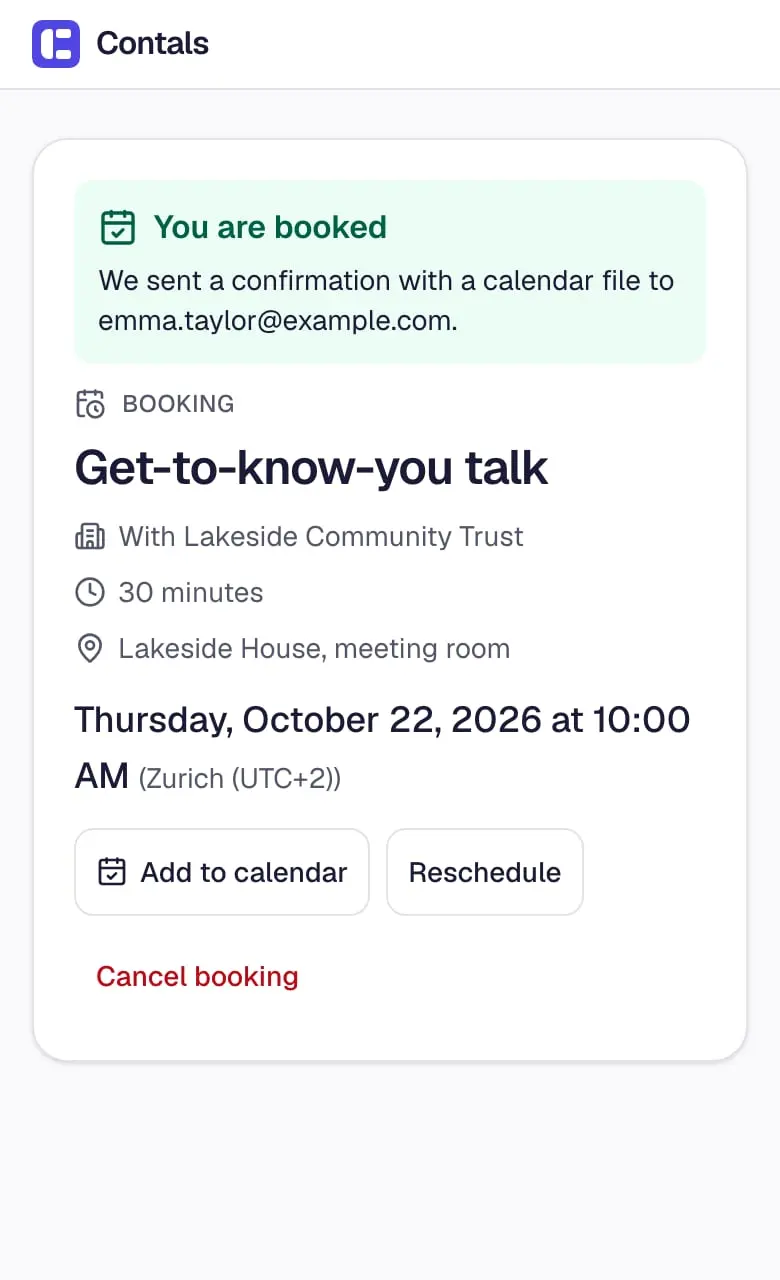
Booking page
A public page where people book a free time slot – each booking becomes a card with a due date and a confirmation e-mail with a calendar file.
Roles and sharing
- Video: in the workspace’s settings, a member becomes an admin – workspace roles count for every board.
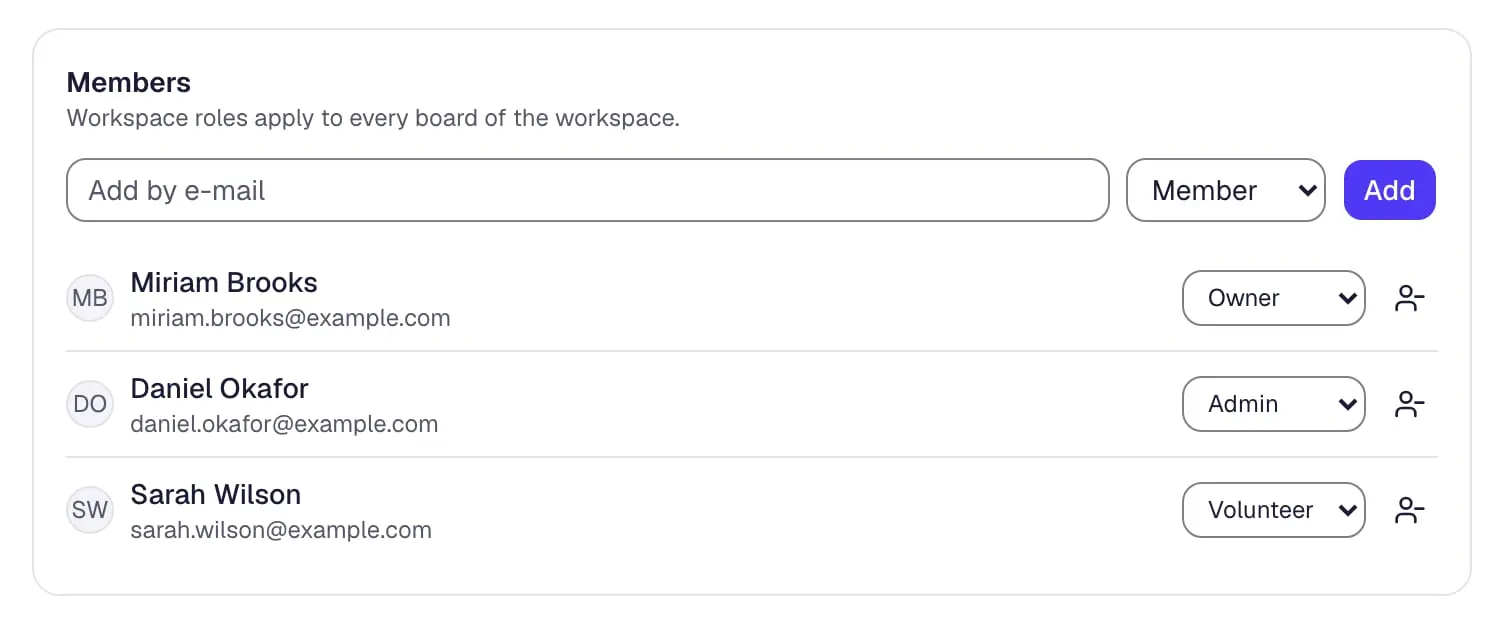
Roles for everyone
Owners, admins and members organize, volunteers and viewers join for free – and a role changes with one click in the workspace settings.
- Video: on a phone in the simple view, a volunteer opens a card of the volunteer day and taps “I’ll do it”.
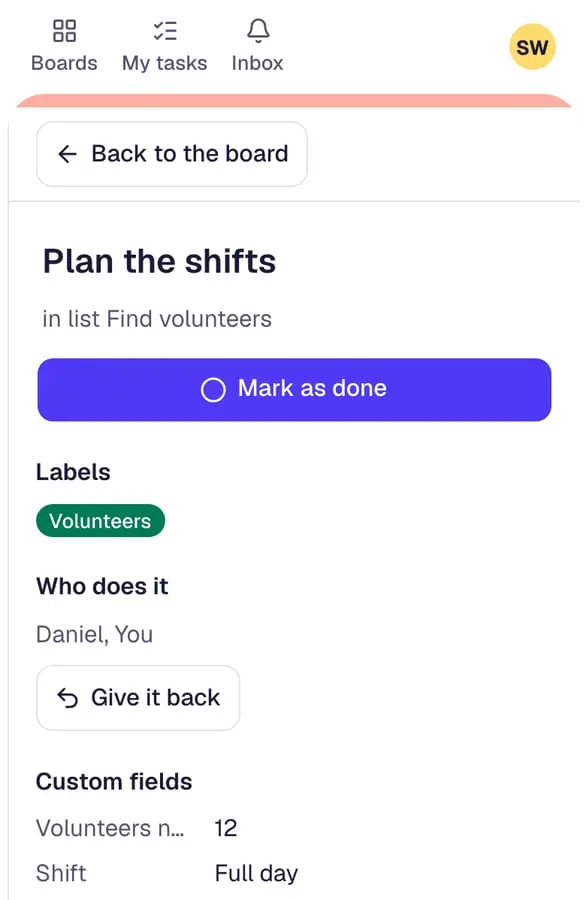
Volunteers take cards
Volunteers and guests take an open card or checklist item themselves with “I’ll do it” – and can give it back.
Board roles
Viewer, contributor, editor or admin on each board – the server checks every change against the role.
Private by default
A new board is visible only to its members until you share it with the workspace or with single people.
Board guests
Invite someone to a single board – they see that board only, for free.
Invitations
Invite people by e-mail, also without an account – nobody is added without accepting, and pending invitations can be sent again or withdrawn.
3 more features
Invite links and QR codes
A link and a printable QR code for a group, with an end date and a limit of joins – shared to WhatsApp or by e-mail from the phone.
Join code
People without the link type a short code from the poster, such as K7M-4PQ2-XAB, on the join page.
Public boards
Publish a board as a read-only web page for everyone with the link – never comments, people or a confidential board.
AI
AI with your own model
Connect your organization’s own AI provider – OpenAI-compatible, Anthropic or Google Gemini – and decide what may be sent; nothing goes out until an admin switches it on.
Assistant
Ask about your boards or describe changes in plain words – the assistant makes them after your “Run”.
AI on cards
Summarize a discussion, draft a description, turn a card into a checklist, suggest labels or translate – always as a preview first.
Board with AI
Describe a project in one sentence and check the suggested lists and cards before the board is created.
Summarize my week
A few sentences on the home page about what is overdue, due and waiting for your answer – written only when you click.
AI summary since your last visit
Two or three sentences about what others changed on a board since your last visit, written when you click Summarize.
API and integrations
REST API and API tokens
A public REST API with an OpenAPI description, and personal tokens that never exceed your rights, can be limited to one workspace and expire.
MCP server
AI assistants such as Claude or ChatGPT work with your boards through the MCP server – with your token and your rights.
Set up by an AI agent
An AI agent signs a person up and sets up workspaces, boards and invitations – after the person confirms and approves its access.
Webhooks, Zapier and Make
Signed webhooks send what happens on your boards to your own server, Zapier or Make, with a delivery log.
E-mail to a board
Each board can have its own secret address – a member’s mail becomes a card, its subject the title.
Sign-in and security
Sign-in links and codes
Sign in with a password, a one-time link or a 6-digit code for the installed app – and set a new password through a link if you forgot yours.
Single sign-on (SSO)
Team and BusinessSAML 2.0 or OpenID Connect for your organization, with verified domains, optional required SSO and accounts created on first sign-in.
Two-factor sign-in
A code from an authenticator app at sign-in, with single-use recovery codes for a lost phone.
Passkeys
Sign in with your fingerprint, your face or the PIN of your device instead of a password.
Signed-in devices
See every device where you are signed in and sign out the others at once – a shared computer keeps no board copies.
Control for organizations
- Video: a board is made confidential in its settings – from then on its titles stay out of links, e-mails and notifications.
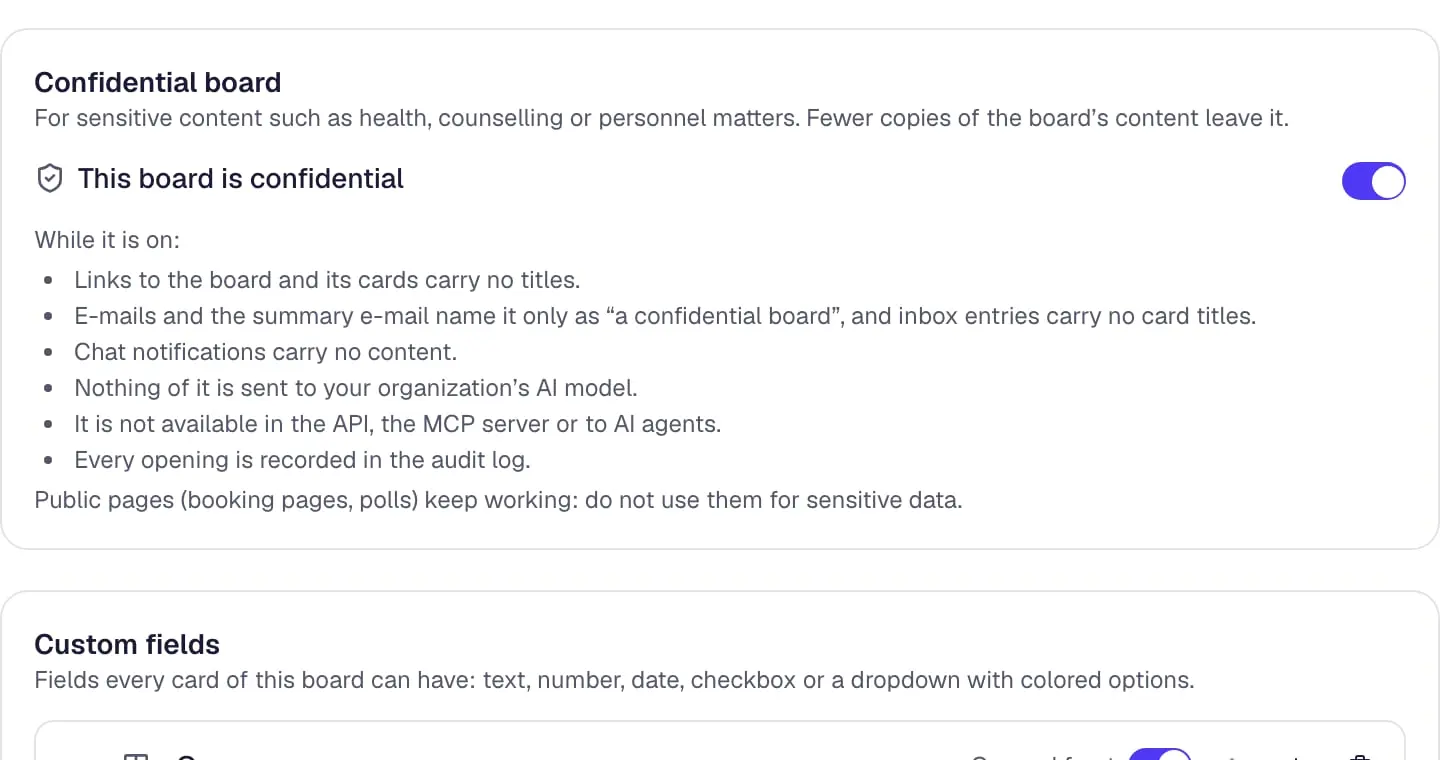
Confidential boards
For pastoral care or personnel matters – no titles in links, e-mails or push notifications, nothing to AI, the API or chat, and every opening logged.
Required two-factor sign-in
Owners require two-factor sign-in of everyone in the organization, see who has it on and reset it for someone who lost their phone.
Audit log
Owners and admins see who changed roles, access, sign-in settings, billing and settings – filtered by person, type and date, downloadable as CSV.
No titles in links
An organization setting that keeps board and card titles out of every link, so a forwarded link reveals nothing.
Retention rules
Board admins let done cards be archived or deleted automatically a chosen number of days after completion.
Private boards stay private
Owners and admins manage private boards without seeing their content – opening one is logged and shown to its members.
Privacy contact and DPA
Owners name a privacy contact and accept the data processing agreement in the organization’s settings.
Your data
Export as JSON
Download everything on a board or in a workspace as JSON – lists, cards, comments, Power-Up data and activity.
Organization export
Team and BusinessOwners and admins download every workspace of the organization they manage in one export.
Cards as CSV
A board’s cards as a spreadsheet – number, title, list, labels, people, due date, status and description.
Files as ZIP
Board admins download every file of a board as a ZIP, with a folder per card.
Offline reading
If the connection drops, boards stay readable from a local copy, and the badge says how fresh it is.
Account deletion
Delete your account yourself – your personal data is erased for good after 30 days, and shared content stays with the team.
Organization deletion
Owners delete the whole organization – read-only for 30 days, in which they can still keep it, then erased.
Comfortable for everyone
- Video: the display settings – dark, high contrast, sepia and light, switched with one click each.
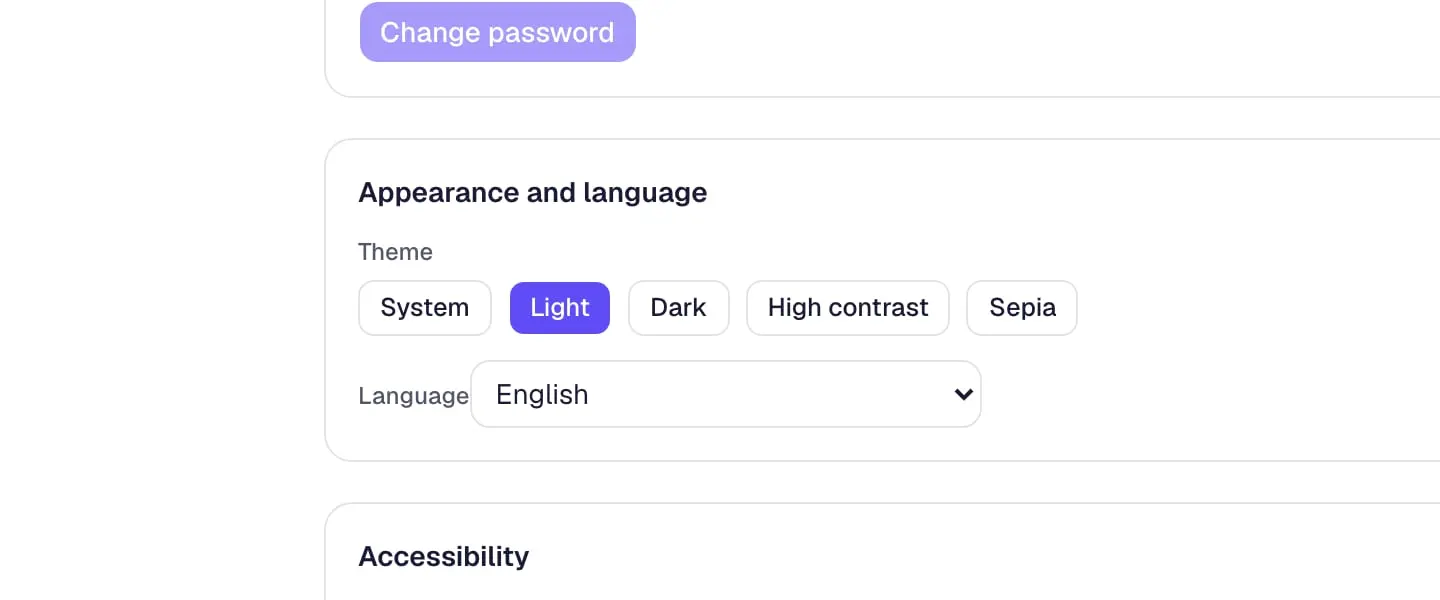
Themes
Light, dark, high contrast and sepia – following your system by default.
Simple view
Fewer buttons, larger text and plain words for occasional helpers – on by default for volunteers, viewers and guests.
Keyboard and screen readers
Everything works with the keyboard, moving cards included, and screen readers announce cards, moves and changes.
Your language
Contals speaks English, German, Swiss German, French, Italian and Spanish – and the website follows your choice.
Plans and organization
Several workspaces
Team and BusinessOne organization, several workspaces – each with its own members, boards and settings.
Organization admins
Admins manage workspaces, billing and security – without seeing board content unless they are members.
Plans and billing
Plans in CHF, EUR or USD through Stripe, with seats, invoices and payment methods on one billing page.
Trial without a card
New organizations try the Team plan first, without a card, and simply continue on the free plan afterwards.
Nonprofit pricing
Churches, charities and associations apply on the billing page for the Team plan free up to a number of full members, and a discount beyond.
Starting and switching
Welcome in three steps
After sign-up, name your organization, invite your team and land on a starter board that shows you around.
Getting started
A short checklist on the home page for new owners and admins – a board of your own, the team, a due date, a Power-Up, the calendar.
Trello import
Bring one board or a whole Trello workspace – as JSON, a workspace ZIP or through the API – with checklists, covers, people and files.
Import from other tools
Bring boards from Asana, Jira, monday.com, ClickUp, Notion, Wekan, CSV or Excel – and later add only what is new.
Free Trello migration
Contals guides you through the move from Trello in a video call – free, while places last.
Good to know
A few facts around the features – and the changelog shows what is new.
- EU data residency
- Board data, database and backups in Cloudflare’s EU jurisdiction; an encrypted copy of the backups in Frankfurt. Security & privacy
- Accessibility
- Contals aims to meet WCAG 2.2 level AA and is partially conformant – the accessibility statement lists the known limitations. Accessibility statement
- File sizes
- Up to 10 MB per file on the free plan, 100 MB on paid plans. Pricing
- Quiet hours and due reminders
- No push notifications in your quiet hours (21:00 to 07:00 by default), and notification e-mails wait until they end; a reminder before a card’s due date, by default a day before at 08:00 in your time zone.
Try it with your next project.
Free for small teams. Volunteers and guests are always free. No credit card.